Synchronizing Targets
You sell the same shirt rigged for Legacy, Maitreya, Reborn and three more bodies. You do not want to configure six targets and six sets of actions. SYNC solves it: configure one shirt, then make the others listen on the same channel.
How to sync
Set up the first shirt normally: create the target with NEW, scan it in the panel, build all the actions, test.
Rez the other shirts on the ground, within 5 meters of the first one.
Drag
*TARGETSinto each of them. When the menu appears, choose SYNC.The script scans a 5 m radius for objects that belong to you and are already configured targets, and lists them by number (up to 6 at a time, so keep only the reference object nearby).
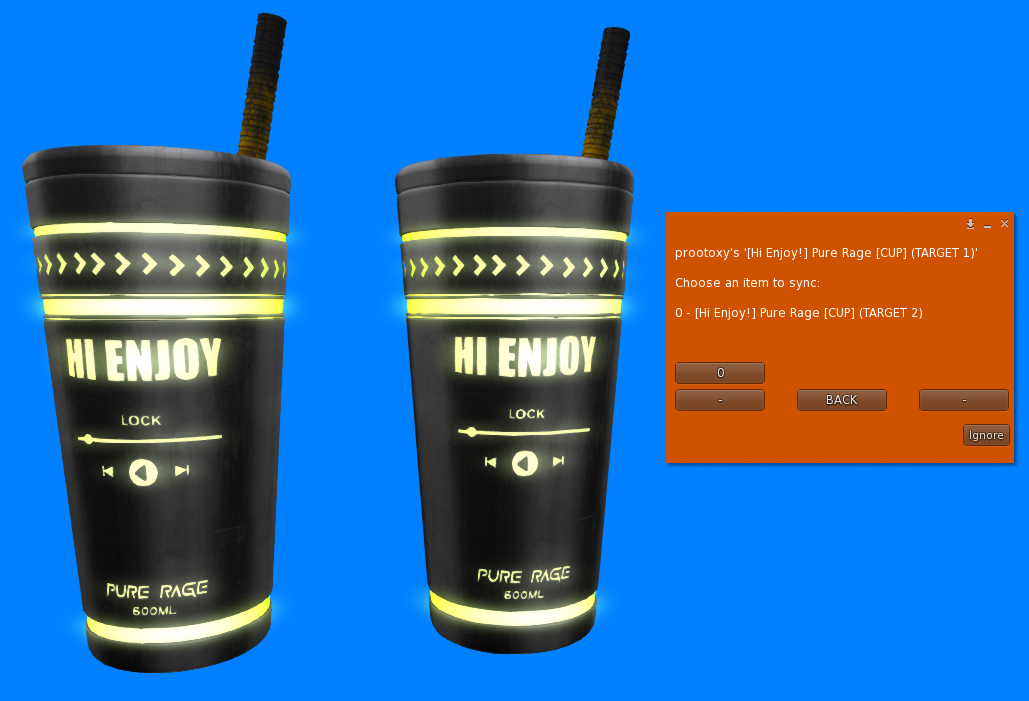
Pick the number of the object to sync with. Click the number of the first shirt. Done: the new shirt now answers the same HUD commands.
Repeat for every copy. There is no limit on how many objects share a channel.
Requirements for perfect results
- Objects should have the same link names and the same face layout. Since version 1.2.0 actions target prims by link name, so the link order may differ, but the names must exist. If a synced copy has no prim with the requested name, that copy simply does nothing for that action.
- Keep the scan distance in mind: 5 meters between the object being synced and the reference object.
- Only your own objects are listed.
What syncing does not do
- It does not copy textures or settings between objects. It only shares the channel.
- It does not link the objects to the same project. Only one HUD project exists; the shirts are interchangeable receivers.
Already repeating the actions for every body?
Many creators set up each body as its own target and repeat every action once per body. It works, but every change has to be made several times, the project uses several times the memory, and each click sends one message per body.
The panel notices it for you. After you Save, if two or more targets receive exactly the same actions everywhere (same actions, same values, same order, in at least two buttons or events), a tip called Save work with SYNC opens once:
The problem, in numbers. For example: today 48 actions, with SYNC 12. Press Show me how, or Not now. Don't show this again starts ticked; untick it if you want to see the tip again next time you open the panel.
How to use SYNC. Pick the Main object, the one that keeps its actions. The steps name your own objects:
- rez all of them within 5 m of the main one;
- in each of the others, delete
*TARGETS, drop it in again, choose SYNC and pick the main object.
Fix my project. The panel removes the repeated actions and keeps only the main object's. Then Build.
Sync in Second Life before you Build
After Fix my project, the other objects only react once they are synced to the main one. Build before syncing and they stop working. Changed your mind? Ctrl+Z brings the actions back.
A target that differs anywhere (another texture on one button, an extra action) is left out, because SYNC would lose that difference. Clicky notices the same thing and may suggest SYNC once; say no and it keeps building one target at a time.
Typical uses
- One HUD for every body version of a garment.
- Left and right versions of an accessory (earrings, bracelets).
- A set of furniture that changes texture together.
Un-syncing
Drop *TARGETS again and choose NEW; the object gets its own channel. Then scan targets in the panel and reassign actions, or use Bulk Edit.