Creating a Color Picker
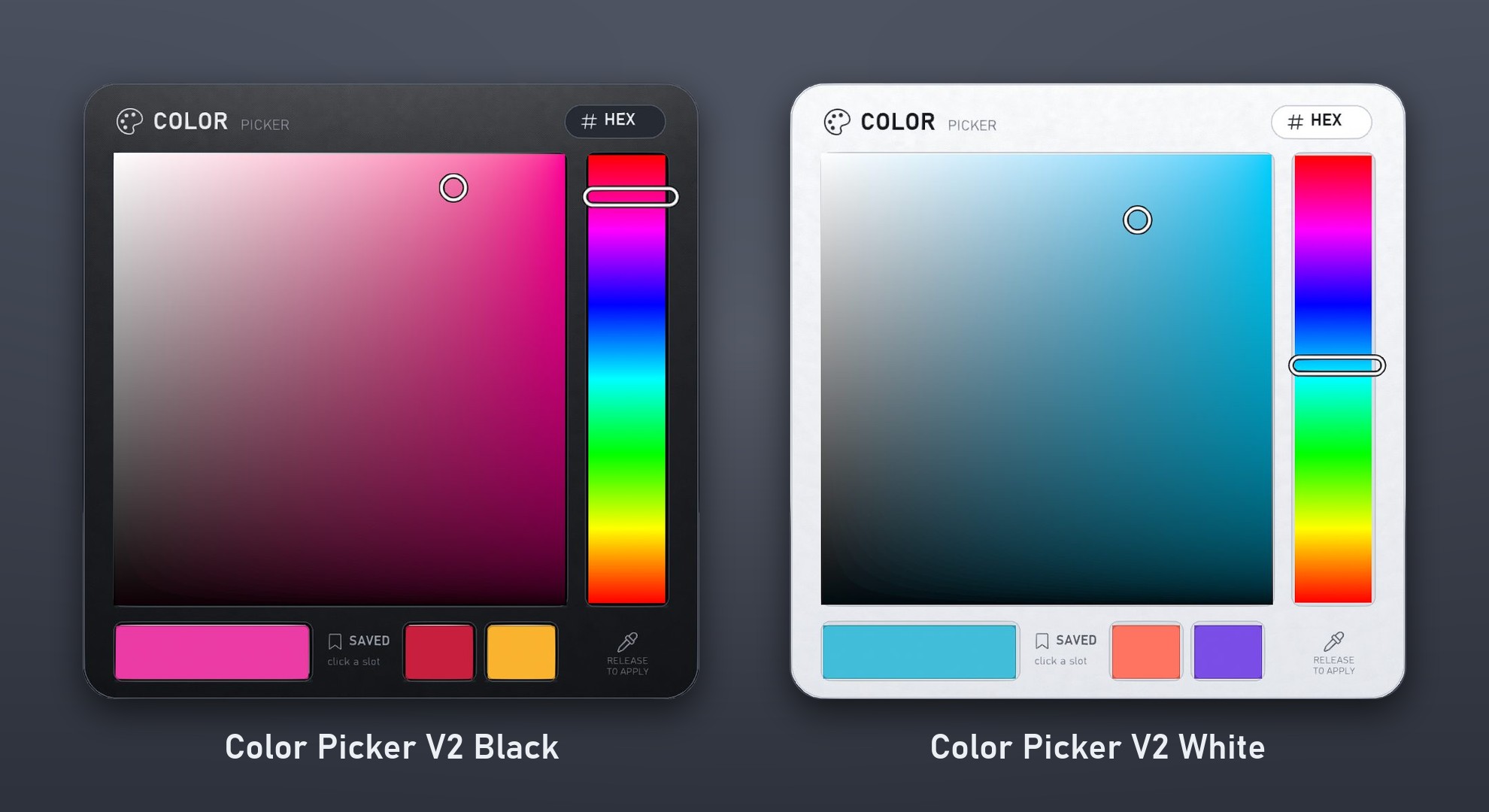
Rez Color Picker V2 Black or Color Picker V2 White on the ground. Both are in the Color Picker folder of your 1Click Maker delivery (Hi Enjoy! › 1Click Maker › v… - date).
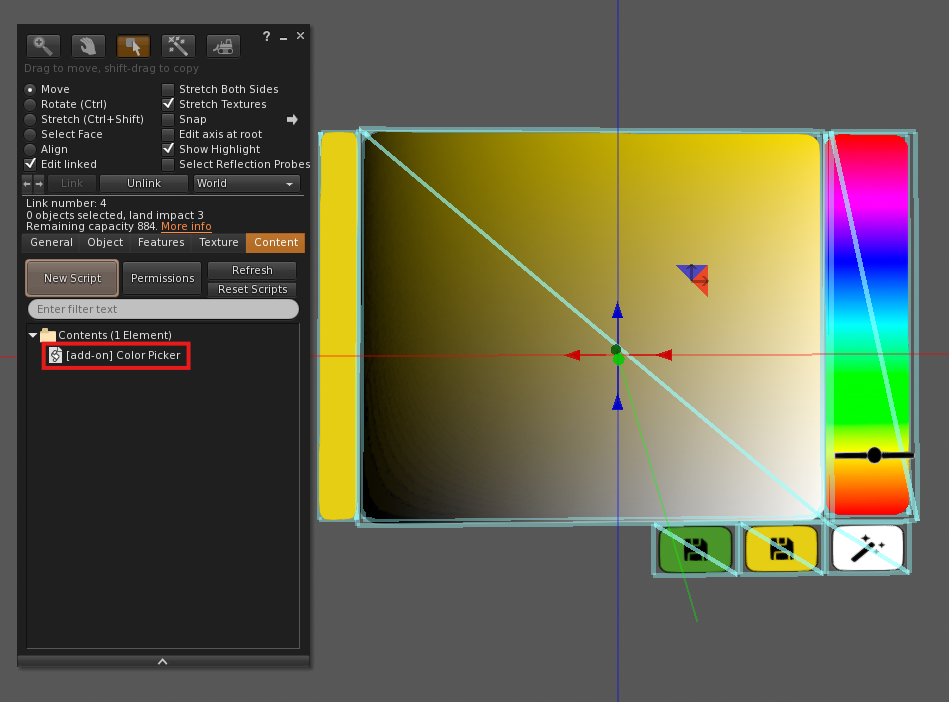
Check its Content. The script
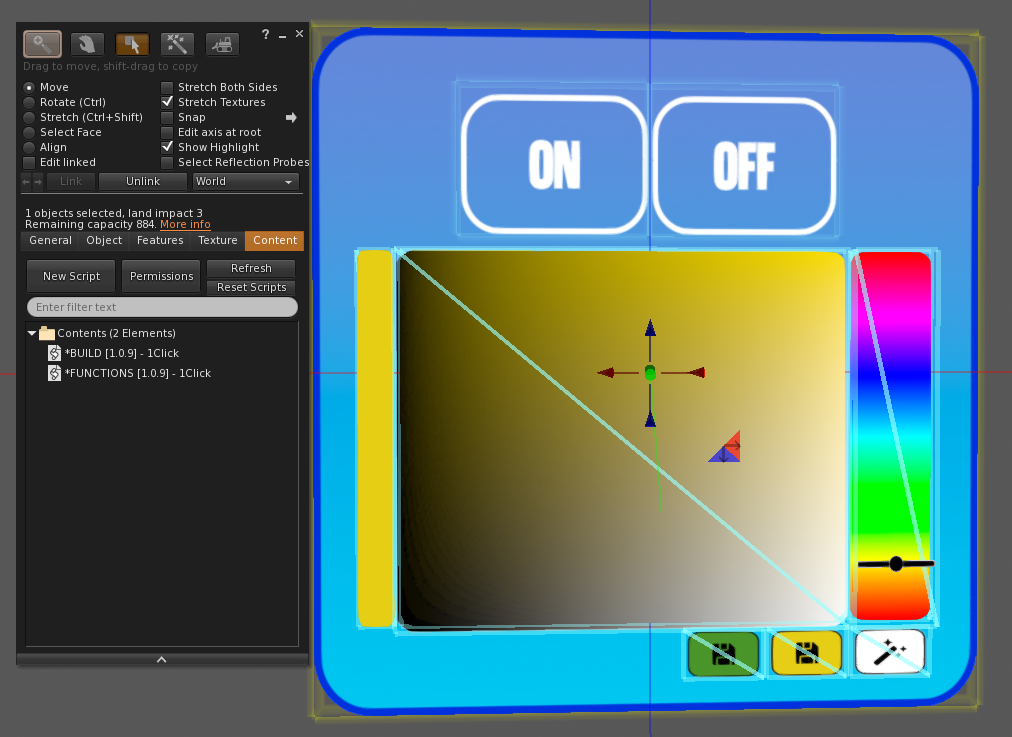
[add-on] - Color Picker V2 - 1Clickmust be inside the picker object (it ships with it). Do not move it to the HUD's root.Link the picker to your HUD (HUD root selected last, Ctrl+L) and position it where you want it in the design. It already faces the same side as the HUD's front, so keep its rotation at 0. You can resize it freely.
In the panel, Re-scan the buttons. The picker shows up in the left column with a palette icon.
Click it. Its function opens with a special form instead of the action grid.
Add a target configuration: choose the Target, the Link Names and the Faces the picker should tint. Click Add Target to control more objects or parts with the same picker.
Save and Build. Wear a copy of the HUD and the target and try it.
Using it in-world (what your customers see)
- Drag on the hue bar to choose the hue, and on the square to choose how strong and how bright the color is. The color is applied when you release.
- Click the swatch with the current color to apply it again.
- Click HEX to type a code:
#FF8000,255,128,0or<1, 0.5, 0>. - Click a saved slot and choose Save to keep the current color there, or Apply to use it.
Rules
- Do not change the description of the picker object (
type:color_picker). The panel would stop recognizing it. - Keep the add-on inside the picker prim, not loose in the HUD's Content.
- Several pickers in one HUD are fine: each has its own targets. Give each one its own name: two prims with the same name share the same settings.
- The picker changes color only. Textures, glow and transparency are separate actions.
- Color Picker actions cost 100 memory units per picker.
Combining with buttons
A common layout: texture buttons on the left, a picker on the right, and a reset button with a Color action set to <1,1,1> (white) so customers can go back to the original texture colors.