Color Picker PRO
The Color Picker is a ready-made palette you link to your HUD. Customers drag on it to choose any color for the parts of a target you picked, type a code for an exact match, and save two favorites.
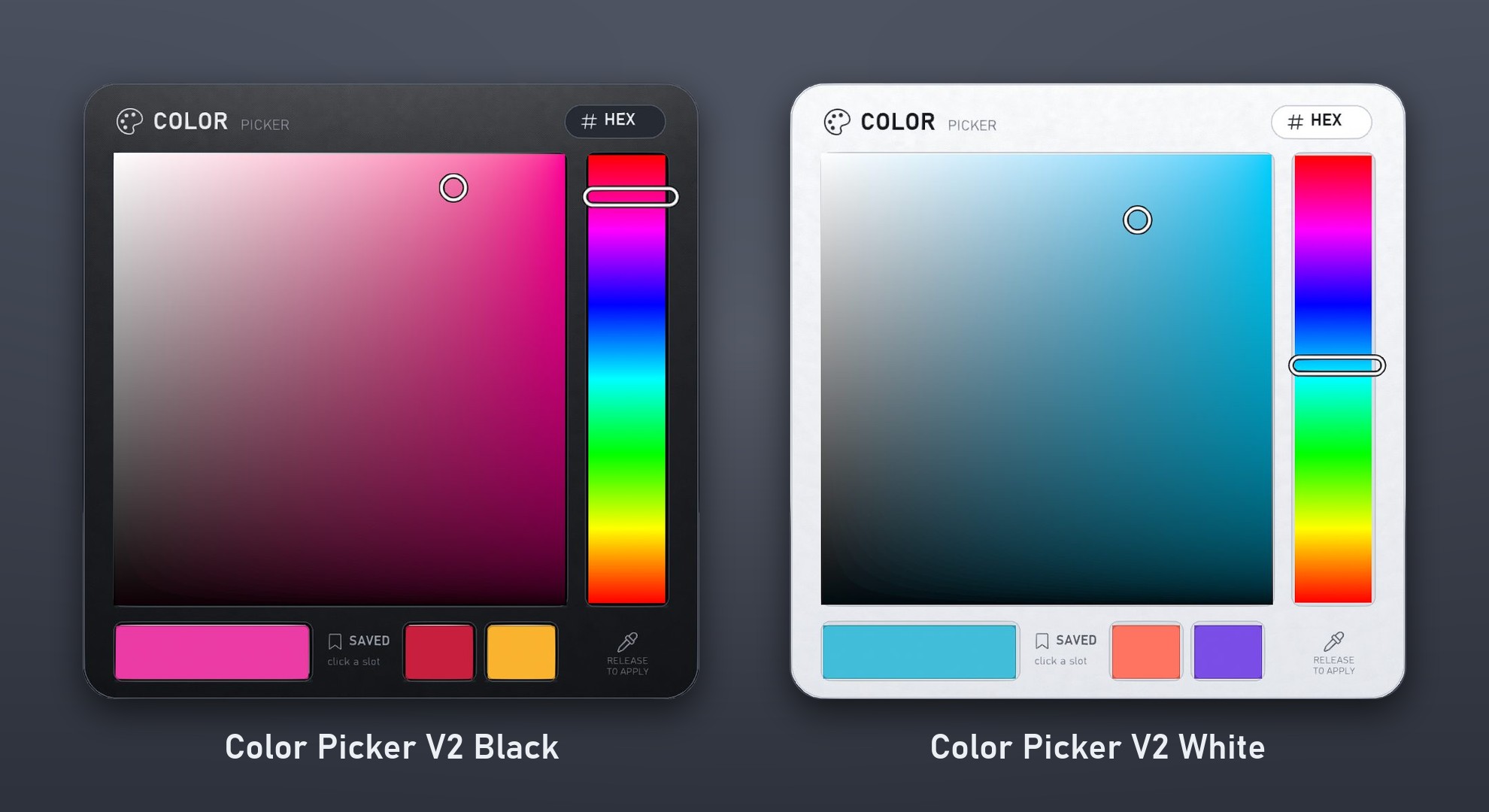
Two versions, same features
| Object | Looks best on |
|---|---|
| Color Picker V2 Black | Dark HUDs: graphite panel with light text. |
| Color Picker V2 White | Light HUDs: white panel with dark text. |
Both are in the Color Picker folder of your 1Click Maker delivery and work exactly the same way. A HUD can use either one, or both.
What it does
- Applies any color to the faces you choose on one or more targets.
- Works on Blinn-Phong and PBR at the same time.
- Accepts exact colors in the HEX box:
#FF8000,255,128,0or<1, 0.5, 0>. - Has two saved slots for the customer's favorite colors.
- Keeps the current color and the slots after Reset Scripts and when the HUD is copied.
- A HUD can hold several pickers, each controlling different parts, and one picker can control multiple targets.
How your customers use it
- Hue bar (right): drag up or down to choose the hue.
- Square: drag to set how strong the color is (left to right) and how bright (bottom to top).
- The markers follow the mouse while you hold it, and the color is applied when you release.
- Swatch (bottom left): shows the current color; click it to apply it again.
- Saved slots: click one and choose Apply (use that color) or Save (keep the current color there).
- HEX (top right): opens a box to type a color.
How it is built
The picker is a single mesh object. Inside it is the script [add-on] - Color Picker V2 - 1Click, and its description reads type:color_picker: that is how the panel recognizes it during a scan. You link the picker to your HUD like any other button prim, and the panel shows it with a palette icon.
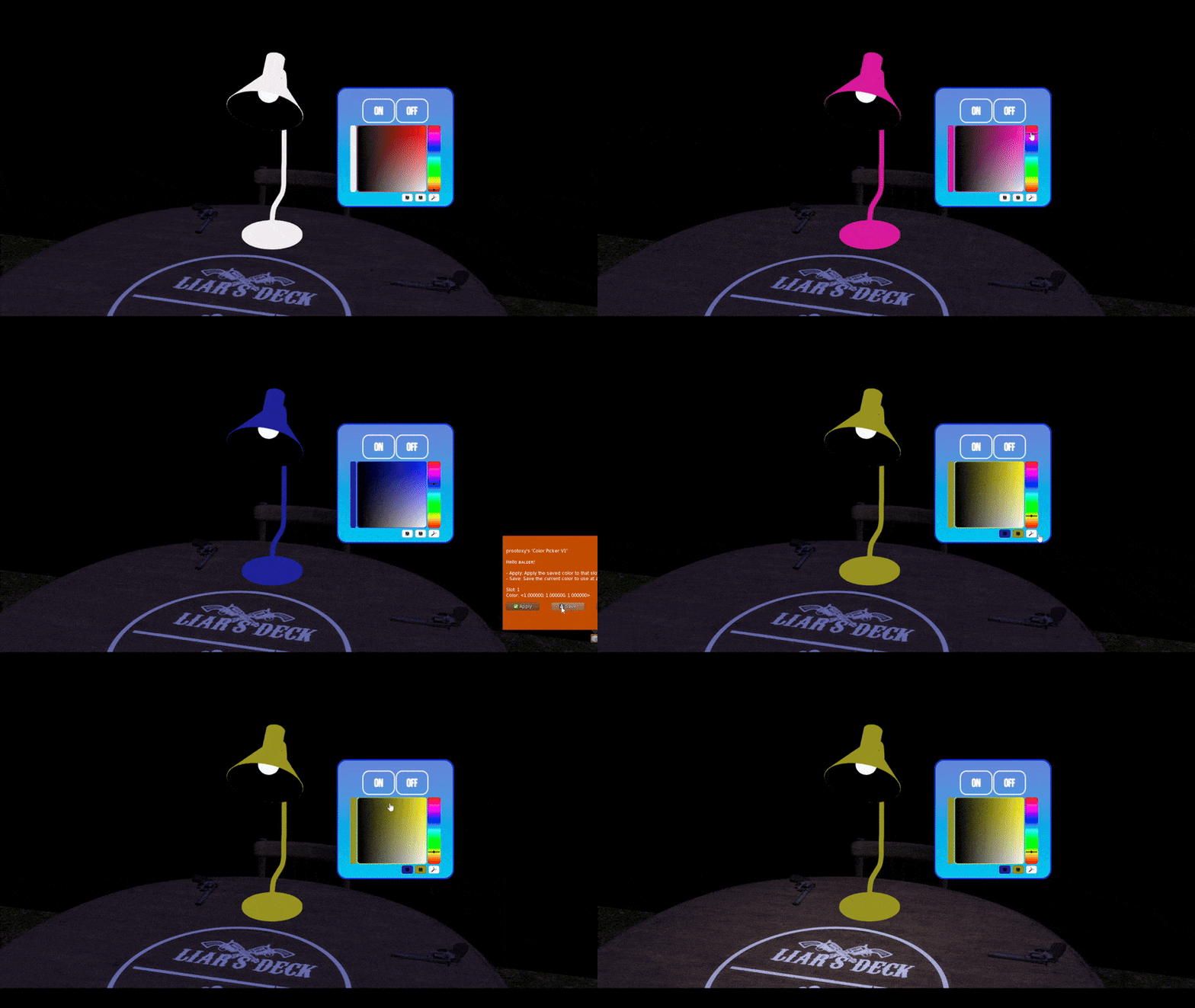
Already using the first Color Picker?
Pickers with the script [add-on] - Color Picker - 1Click keep working as they are, and they are set up in the panel the same way. To switch, link a V2 picker, give it the old picker's name so it keeps the same settings, and unlink the old one.
Requirements
- PRO account.
- The Color Picker object linked to the HUD (Prim Mode).
- Targets scanned in the panel.
Next
Creating a Color Picker walks through linking and configuring one.