Creating a Variable
Click the round
{ }button in the bottom-left corner of the panel (next to the ✦ Clicky button).
Bottom-left corner of the panel: ✦ Clicky and { } Object Variables. The Object Variables panel slides in from the right. Stay on the User tab and click Create New Variable.
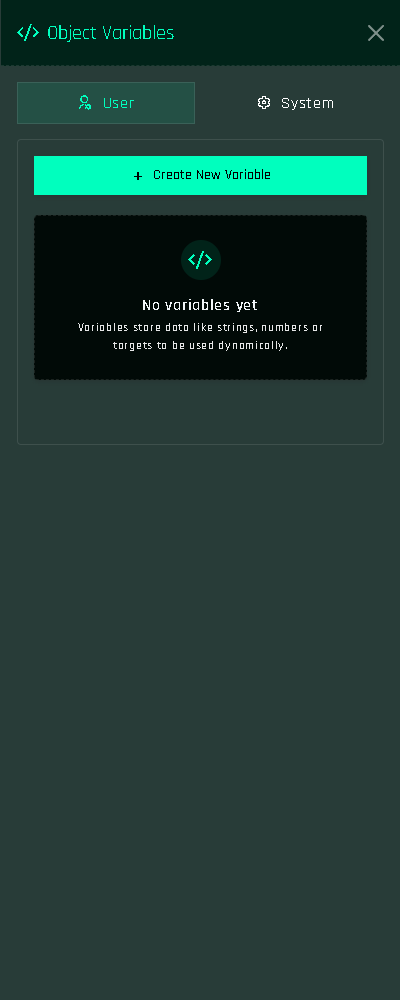
The Object Variables panel. Fill in the three fields:
Field Notes Type String, Integer, Float, Vector or Key. See User Variables. Name Unique, up to 30 characters, letters/numbers/ _. Do not type the$; the panel adds it.Initial value The value the variable has when the project is built. Must match the type. Confirm. The variable is listed in the panel; you can edit or delete it there at any time.
Save and Build so the object knows about it.
Make sure [add-on] - Conditions & Variables - 1Click is in the Content tab of the object that runs the functions (usually the HUD). Variables and conditions live in that script; without it the object ignores them and prints
ATTENTION: This project needs the '[add-on] - Conditions & Variables - 1Click' script.
New look
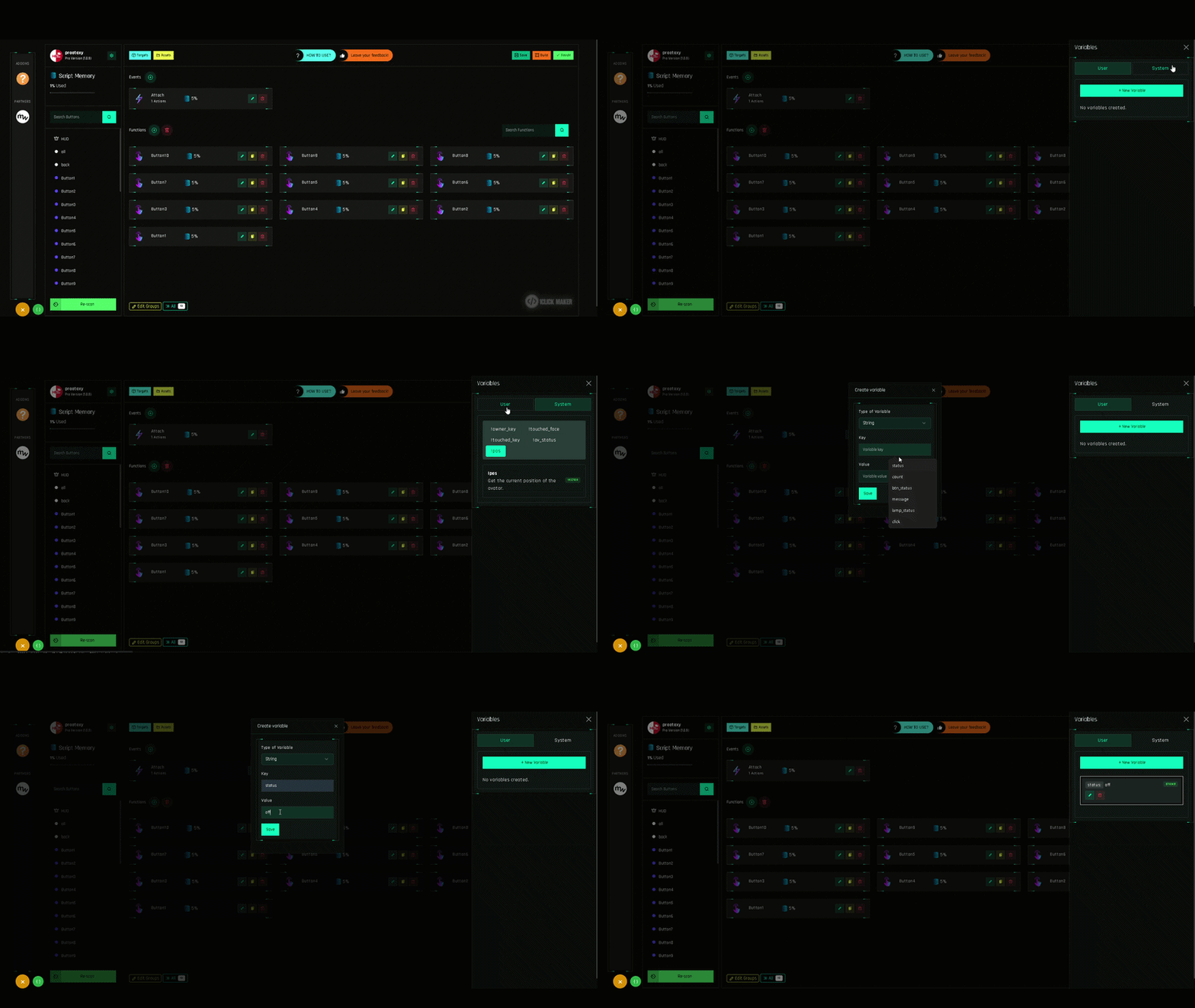
Press Variables in the header. The tabs are called Yours and System; press New variable and fill in the same fields. The New Look
Using it
- In a Condition, type
$in the Field or Value box: an autocomplete lists your variables. - In Change Variable, pick it from the dropdown.
Deleting a variable that is in use
Conditions and Change Variable actions that reference a deleted variable keep the text ($name) but will never match. Update or delete those actions.