UI Mode PRO
UI Mode turns a single prim into a full interface. The panel shows the HUD's texture in a 2D canvas; you draw rectangles where buttons should be, and each rectangle becomes a function. No linking, no naming, and you can move buttons around with alignment guides like in a design tool.
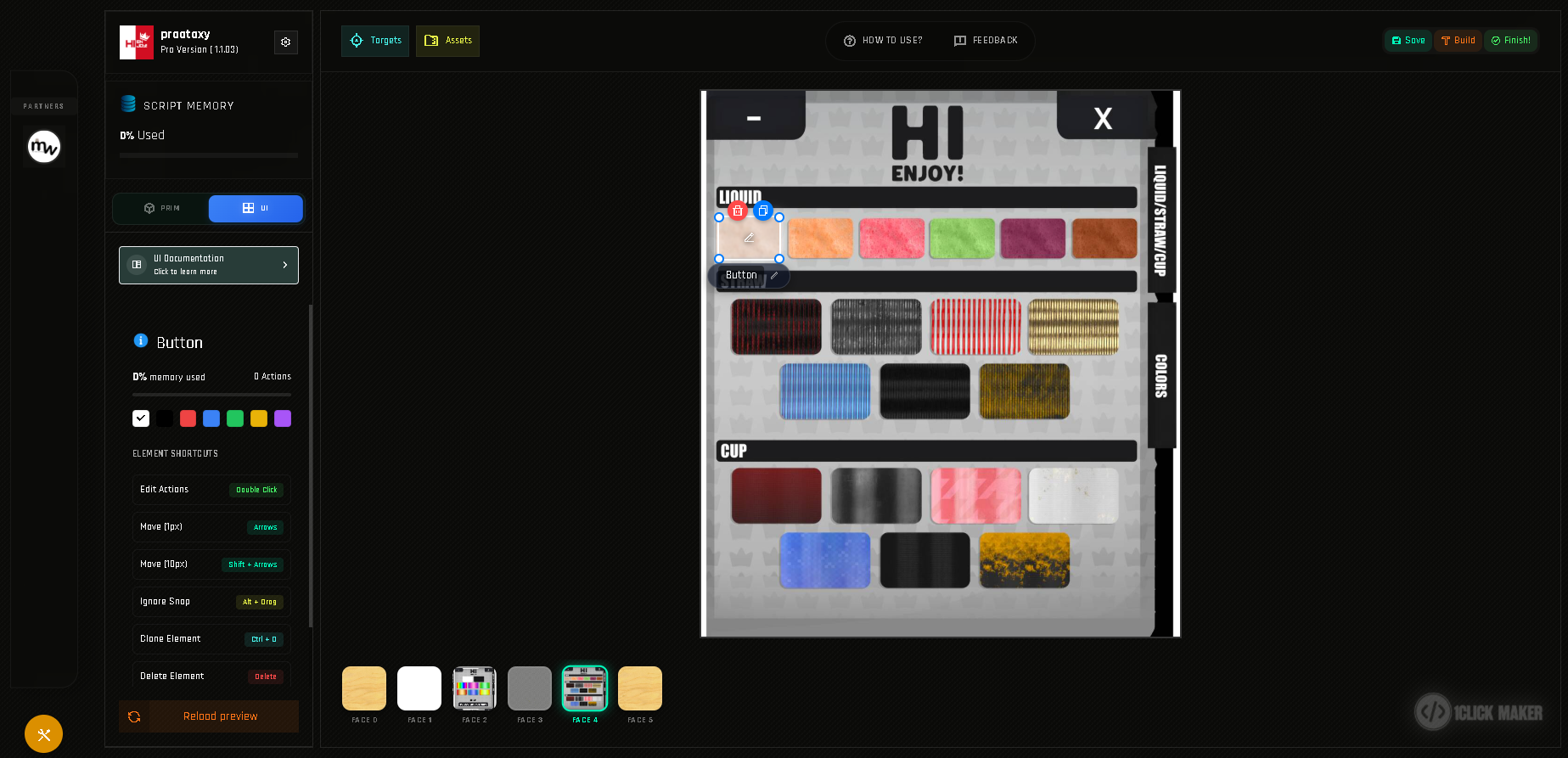
What you get
- Hundreds of buttons on one prim. Land impact stays at 1.
- Draw, move, resize, clone, delete with the mouse and keyboard.
- Up to 6 faces of a cube, each with its own buttons.
- Alignment guides and align/distribute tools.
- Multi-selection (Shift-click or Shift-drag).
- Zoom from 100% to 400%.
- Colors as tags to organize your work (they do not show in-world).
- A floating preview of the button you are editing.
Requirements
- A PRO account (FREE users can try the editor, but the buttons do not work in-world).
- The script
[add-on] - UI Buttons - 1Clickinside the HUD, together with*FUNCTIONS. - A HUD built from a standard cube prim. Faces are numbered 0–5 like a cube; mesh HUDs with different face layouts are not supported.
How it works in-world
The add-on watches where on the face you click (as a position from 0 to 1 in each direction) and matches it against the rectangles you drew. When one matches, *FUNCTIONS runs that button's function. Because positions are relative, you can resize the HUD freely in-world without breaking the buttons.
Pages in this section
Quickstart Your first UI button.
Adjustments Move, resize, rename, color and align buttons.
Tips and Warnings Shortcuts, limits and good practices.
Both modes at once
A project can have prim buttons and UI buttons. A common combination: a single-prim UI HUD with a physical Color Picker linked to it.