
Loyalty Points PRO
Customers earn points every time they buy, and trade them for products from your store. It is a simple reason to come back.
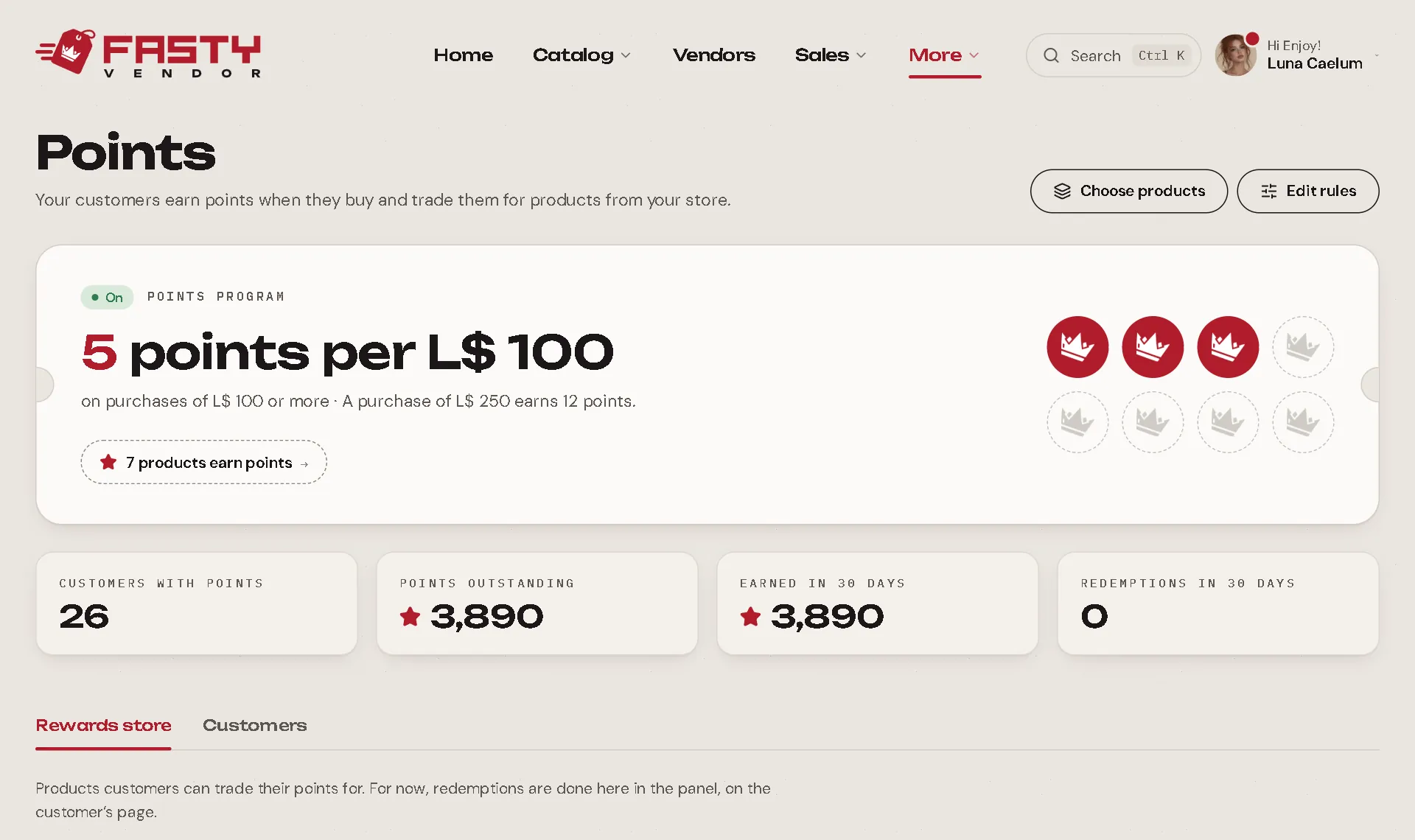
Set the rule
Press Edit rules (or go to Settings → Points).
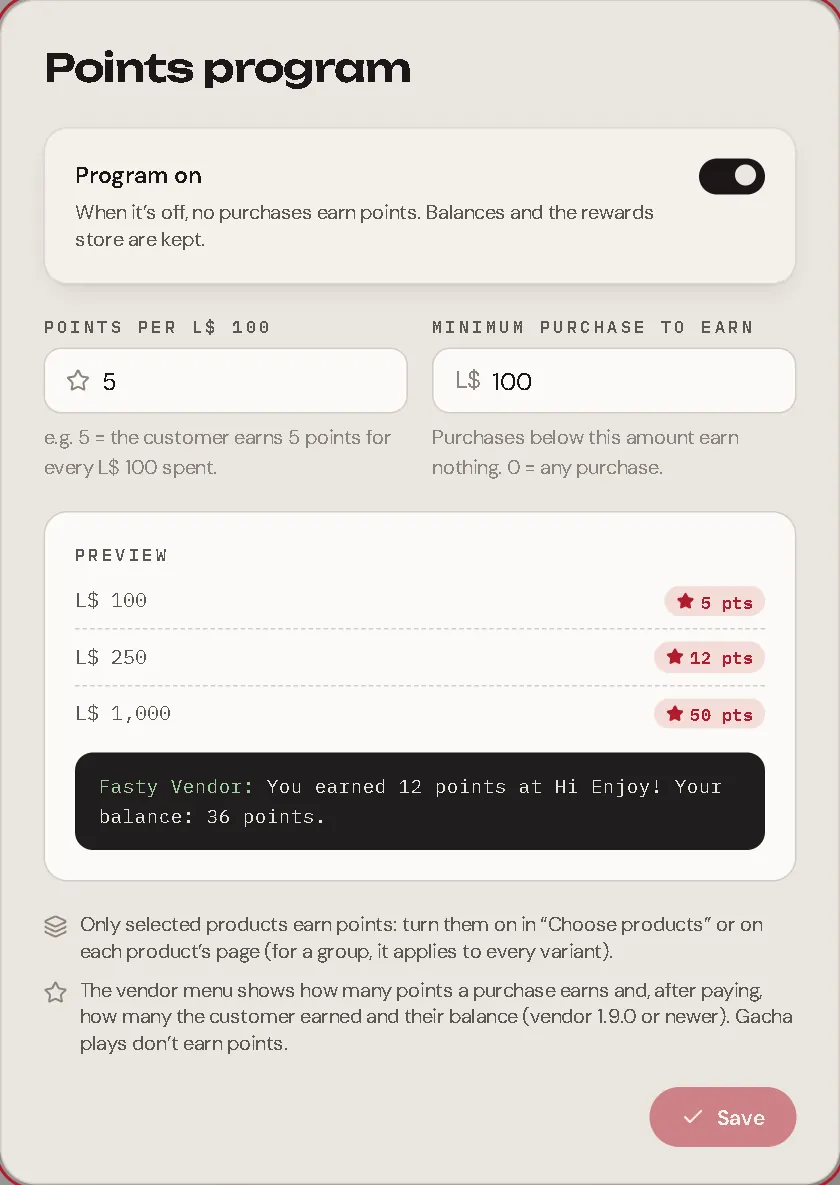
| Setting | Meaning |
|---|---|
| Program on | Off = no purchase earns points. Balances and the rewards shop are kept. |
| Points per L$ 100 | For example, 5 = the customer earns 5 points for every L$ 100 spent. |
| Minimum purchase to earn | Purchases below this earn nothing. 0 = any purchase. |
Points are proportional and rounded down: with 5 points per L$ 100, a purchase of L$ 250 earns 12 points. The preview shows exactly what the customer will read in Second Life.
Choose which products earn points
Only the products you turn on earn points. Two ways:
- Choose products on the Points screen: a list with a switch per product. On a group, one switch turns every variant on or off (each one can still change on its own later).
- The Earns points switch on each product sheet.
What customers see
- Before buying: the vendor menu says "This purchase earns you 12 points."
- After buying: the vendor tells them how many they earned and their balance at your store.
- On the receipt: "You earned 12 points with this purchase" and their balance.
Who earns, and when
- The person who paid earns the points. On a gift, the buyer earns them, not the recipient.
- Gacha plays don't earn points.
- Points use only the L$ that came in: if a coupon or gift card paid part, that part does not earn points.
- A sale made while the server was down earns its points as soon as the server receives it. The same sale never earns twice.
- A refunded purchase loses its points (only down to zero: if the customer already spent them, the balance just stops at zero).
The rewards shop
The Rewards shop tab lists the products customers can get with points. Press Add product, choose the product and set its price in points. The panel shows what that is worth in purchases (for example, "worth L$ 1,000 in purchases"). You can pause a reward or remove it.
Redeeming points
For now, redemptions are done by you, in the panel:
Open the customer's page and press Redeem a product in the Points section.
Pick a reward. The panel shows if they are short.
Press Redeem. The points come off and the hub delivers the product, like a purchase (it shows in Sales as Points trade, with a receipt).
Adjusting a balance
On the customer page, Adjust lets you Give points or Take points, with an optional reason ("birthday gift"). The balance never goes negative.
The Customers tab
Everyone with points, sorted by balance, with what they earned and redeemed.