
Setting Up a Vendor
Any object can be a vendor: a framed poster, a mannequin, a mesh board. Fasty does not change how it looks.
Step by step
Put the
Fasty Vendorscript in the root prim of your board.Allow debit permission when the vendor asks (see below).
Wait a few seconds. The vendor registers with your store and appears in Vendors in the panel.
Choose its product on the vendor sheet and press Save. Or let Fasty do it by name.
While it sets up, the vendor shows its progress in floating text. When it is ready, the text disappears and your board looks exactly as you made it.
| Floating text | Meaning |
|---|---|
Owner: touch me to finish the setup | The vendor still needs debit permission. Touch it and click Allow. |
Connecting to your store… | Pairing with Fasty. Takes a few seconds. |
Owner: pick a product in your Fasty panel | Ready, but without a product. Pick one in the panel. |
When it starts selling, the vendor tells you in your chat: "Fasty: now selling Minotaur Horn · Black."
Debit permission
The vendor asks for permission to take L$ from your account. It is required: without it, the vendor does not register and does not sell. If you clicked Deny by mistake, touch the vendor to get the request again.
Why it needs it, and why it is safe:
- It pays your partners' profit shares after each sale. See Profit Sharing.
- It never accepts a free payment order. It only pays a percentage of a sale it recorded itself, and never more than that sale was worth. Even if someone took over the server, they could not empty your account through your vendors.
- Sales that were already paid are always delivered, permission or not.
The product image: the display prim
The vendor never touches your board's textures, except on one child prim named display. If your vendor has a linked prim with that exact name, the vendor shows the product's picture on it: the one you set on the product sheet, the texture with the same name as the item in your hub, or the cover of its group. No display prim? Nothing changes on your board.
Set up by name
A new vendor that has no product yet looks at its own object name. If the name clearly points to a product, it starts selling that product right away.
| Vendor object name | Result |
|---|---|
[Hi Enjoy!] Minotaur Horn - Black VENDOR [Shop] | Sells Minotaur Horn · Black |
Minotaur Horn VENDOR | Matches the group but not a colour: the panel asks you to pick the variant |
Horn - Black (two groups have Black) | Too ambiguous: no product, you choose |
Rules that keep it safe:
- It only sets up vendors without a product. It never replaces your choice or the product a copy inherited.
- It only picks products that are on sale: with a price, or marked as free.
- Items with a version in the name (
My HUD [v1.2.4]): all versions are one product, so the vendor keeps selling it when the new version arrives. - The panel shows by name on those vendors, with an Undo. If you undo or remove the product, the vendor will not set itself up again.
- Turn it on or off in Settings → Store → Set up vendors by name.
Renaming the object in Second Life counts: the vendor reads its name every time it checks in.
The touch menu
When a customer touches the vendor, they get a menu that greets them by name and shows the product, the price and how to buy.
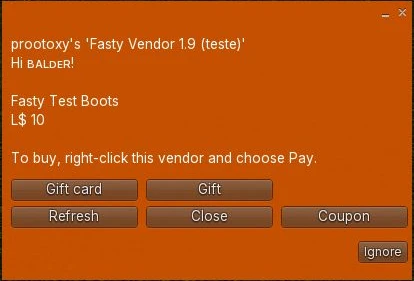
| Button | Who sees it | What it does |
|---|---|---|
| Gift | Everyone | Buy the product for someone else. See Gifts. |
| Gift card | Everyone, when your store has gift card balance | Pay with a gift card. See Gift Cards. |
| Coupon | Everyone, when a coupon is live | Type a discount code. See Coupons. |
| Get Free | Everyone, only on free products | Receive the item without paying. Replaces Gift, Gift card and Coupon. |
| Refresh | Owner | Fetches the product from the server right now. |
The menu also says how many points the purchase gives, when your points program is on, and, when the vendor gives a group discount, "Wearing the store group tag? Pay L$ 85."
Several customers can use the menu at the same time: each one's buttons keep working.
The owner sees two extra lines when they matter: "this product is paused in your panel" and how many sales are "being delivered automatically" (sales the vendor is still handing over after a hiccup, see Reliability).
If someone else is in the middle of a gift or a gift card payment on this vendor, the menu says "Someone else is buying here right now". It frees itself in about a minute.
Buying
Customers buy with right-click → Pay. The vendor only offers the exact price, plus the group price when it gives a group discount. During a sale, Pay shows the sale price. Fasty does not change the click action of your object, so touching it shows the menu and paying buys.
Right after paying, the buyer gets a thank-you in chat with a link to their receipt. If the product was paused while their Pay window was open, or someone paid the group price without wearing the group tag, the vendor gives the L$ back on the spot and says how much.
Free products have no Pay: the buyer touches Get Free. Asking again within 10 minutes doesn't send a second copy.
Copies
- Copy a vendor (Shift-drag, or rez another from inventory): the copy pairs on its own and inherits the product. Put out 20 copies of one vendor in a minute.
- Take it back and rez it again: same thing, it keeps its product.
Your own scripts
Want the vendor to play a sound, open a door or show Sold out? It sends simple link messages to the other scripts in the object when someone pays, when a purchase is confirmed and when the product changes. See Vendor Events for Your Scripts.
Moving from another vendor system
Drop the Fasty Vendor script into the root prim of your old vendor. If the old script has casper in its name, Fasty deletes it and tells you in chat: "Fasty: removed "CasperVend" (another sales system)." Two sales systems in one object would both answer every payment. For other systems, delete the old script yourself. Moving a whole store? See Coming from CasperVend.