
Your Team PRO
Running a store with a partner, or someone who helps with redeliveries? Invite them to your team. Each person signs in with their own Fasty account (their own Second Life avatar and password), so nobody has to share a password.
What each person can do is up to you. You create roles (for example Manager, Helper or Support), choose what each role can see and do, and give a role to each person.
Roles
A role is a name, a color and a list of permissions. Change a role and it changes for everyone who has it, on their next click.
The owner (you, the avatar that owns the store) has no role: the owner can do everything, and is the only one who manages the team and the roles.
When you create a role you can start from a ready-made one and adjust it:
| Start from | What it gives |
|---|---|
| Manager | Everything except the team and roles. |
| Helper | Day to day: sees sales, customers and promotions, redelivers purchases and reviews bloggers. Doesn't see L$ amounts and can't change anything. |
| Support | Sales, customers, gift card balances and points, plus redelivery. |
| Blank | Nothing checked. |
Permissions
Each area of the panel has a level, and some areas have extra actions you turn on one by one.
- No access: the page doesn't show up in their menu.
- View: they open the page and read it, but nothing changes.
- Edit: they create, change and delete things there (it includes View).
| Area | Levels | Extra actions |
|---|---|---|
| Products and groups | View only · Edit | Send a product to someone for free |
| Gacha | View only · Edit | |
| Updates | No access · View · Edit (send updates) | |
| Vendors and hubs | View only · Edit | |
| Sales | No access · View | Redeliver purchases · Refund |
| Customers | No access · View | |
| Payments | No access · View · Edit | |
| Reports | No access · View | |
| Import from CasperVend | On or off | |
| See L$ amounts | No access · View | |
| Profit split | On or off | |
| Points | No access · View · Edit | Give and take points from a customer |
| Gift cards | No access · View · Edit | Give, top up and cancel customer cards |
| Coupons | No access · View · Edit | |
| Discounts | No access · View · Edit | |
| Giveaways | No access · View · Edit | |
| Bloggers | No access · View · Edit | Review posts, deadline requests and takes |
| Store settings | On or off |
A few things to know:
- Everyone on the team sees Home, the catalog, gacha, the vendors and who is on the team. That is what is on sale in the world anyway.
- L$ amounts are a permission of their own. Without See L$ amounts, revenue, the value of each sale and how much each customer spent show as L$ •••, and Home counts sales instead. The server never sends the real numbers to that person.
- Some permissions need another one. Turning one on turns on what it needs: Reports turns on See L$ amounts, Refund turns on Sales. Turning a permission off also turns off what depended on it.
- Every rule is checked by the server, not just hidden in the panel. If someone tries anyway, they get a clear message saying which permission is missing.
Invite someone
Open Store settings → Team and create a role, if you don't have one yet.
Under Invite, type their Second Life username, choose the role, and press Invite.
They get an IM in Second Life. The invite waits in their account menu (their picture in the top corner) until they accept it. Nobody joins your team without saying yes.
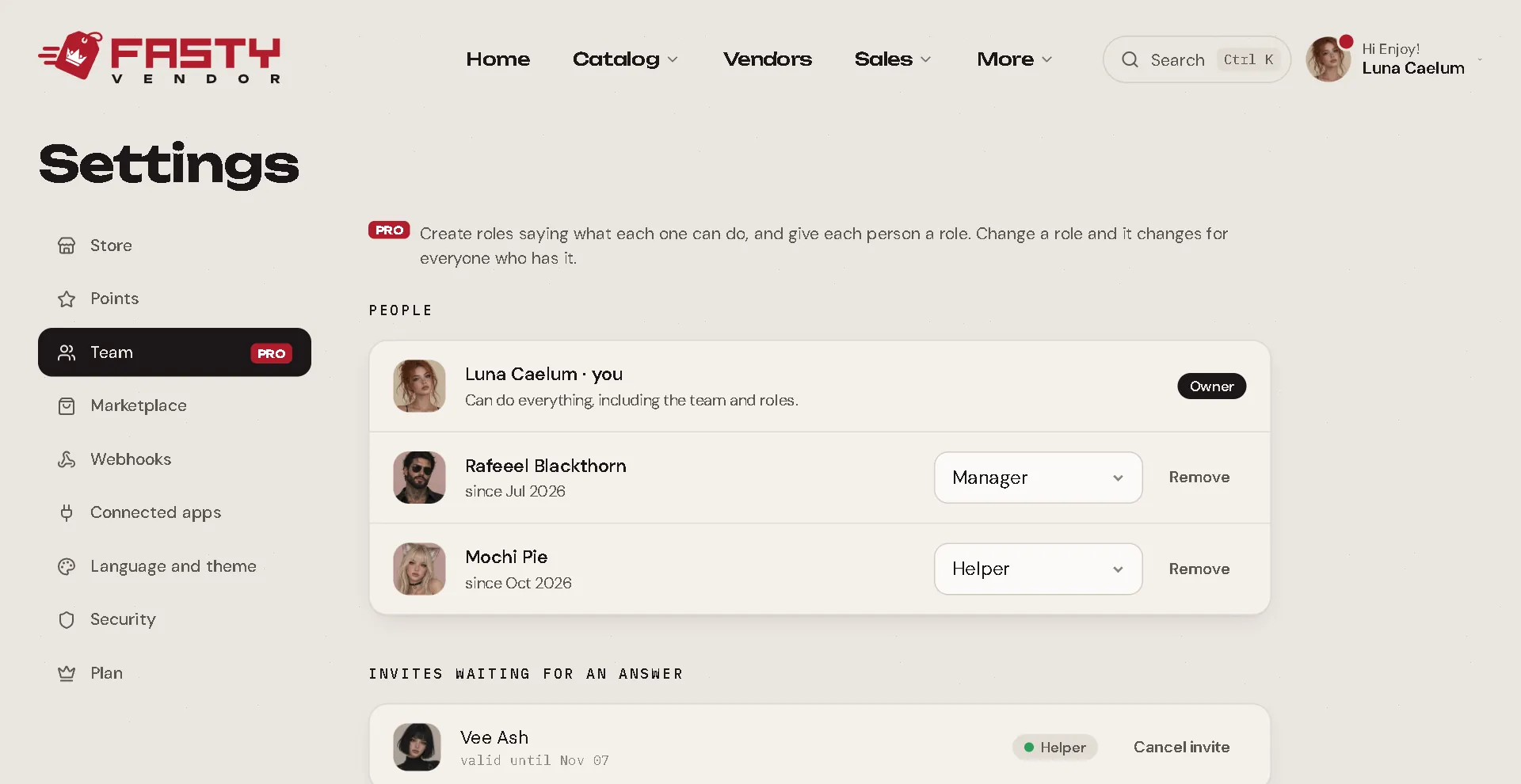
- An invite is valid for 14 days. You can cancel it before that.
- A team can have up to 20 people, and a store up to 20 roles.
- Only the owner invites, changes roles or removes someone. Everyone else sees the list and, under Your role in this store, exactly what their own role allows.
- A role in use can't be deleted: give those people another role first.
Switching between stores
Someone on your team can also have their own store, or help other stores. Their account menu lists every store with their role in each one. Clicking a store opens its Home, so they always know which store they are looking at. A small banner at the top reminds them of the role they are using.
Removing someone
In Store settings → Team, press Remove next to the person. They lose access at once. People can also leave a team themselves, from Account → Stores and teams.
If Pro ends
Inviting people, creating roles and giving permissions need Fasty Pro. If a yearly plan ends, everyone already on the team stays with the role they have. You can still remove people, delete roles, give someone a role with fewer permissions, or take permissions away from a role. See Basic vs Pro.