
Hubs
The hub is the stockroom of your store. It holds your product items and gives them to customers when a vendor sells. Customers never see it; it can sit anywhere in your store.
Set up a hub
Rez a prim and drop the
Fasty Hubscript into it. It connects to Fasty on its own. (The first object you ever set up also creates your store.)Drop your product items into its Content.
That's it. The hub notices the new items and sends them to the panel by itself, in a few seconds. New items become new products, marked NEW until you change them.
The hub does not need debit permission. It only gives items.
Above it, the hub shows a small status: Fasty Hub and Online when all is well, plus how many deliveries are waiting if there are any. Since customers never see the hub, you can hide it anywhere in your store.
The touch menu
Only you (the owner) get the menu.
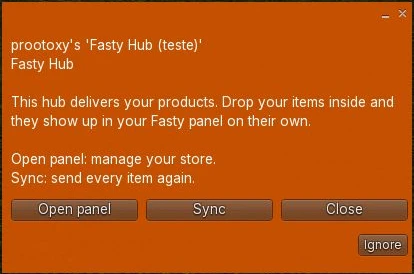
| Button | What it does |
|---|---|
| Open panel | Opens the panel sign-in page (your username and password). |
| Sync | Sends every item to the panel again. You normally don't need it: adding, renaming or removing items is picked up on its own. Use it if something in the panel looks out of date. |
Product items
- They must be copyable. The hub gives a copy. An item without copy permission shows up in the panel with No copy, and Home warns you about it.
- The item name becomes the product name, cleaned up: Fasty removes your store tag and words like (box) or Fatpack from the display name. You can rename the product in the panel any time; the item keeps its name.
- A texture with the same name as the item becomes the product image.
- Same product in two hubs? Use the same item name in both. That is how backup hubs work.
Backup hubs
A single hub is a single point of failure: if its region restarts or goes down, deliveries wait. A second hub in another region with the same items covers for it.
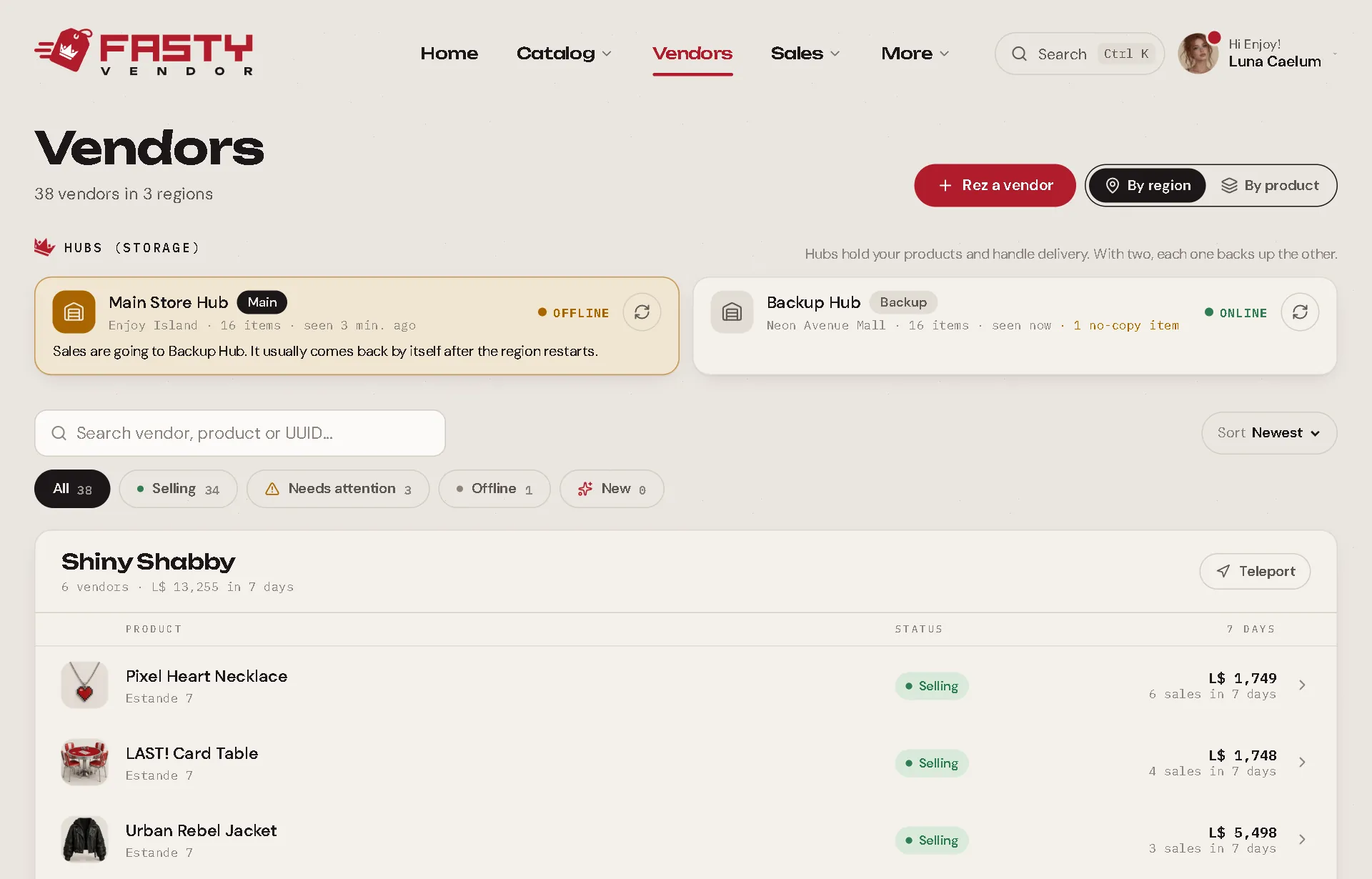
- In Vendors, your hubs appear at the top. One is Main, the others are Backup.
- If the main hub is offline, sales go to a backup hub automatically. Home tells you: "Main Hub is offline. Since 04:50 PM, sales are going to Backup Hub, so every customer still got their item."
- You can choose a preferred hub per vendor (on the vendor sheet), for example the hub in the same region.
Test a hub
On the Vendors screen, press Test now on a hub card. Fasty calls it and tells you how fast it answered. If it doesn't answer, check that the hub is rezzed and its script is running.
Region restarts
When a region restarts, every script in it gets a new internet address. Your hub tells Fasty its new address on its own, a few seconds after the region comes back, and deliveries continue. Sales made in the meantime wait safely and go out as soon as the hub answers (or go to a backup hub).
How fast is a hub?
Second Life makes a script wait 2 seconds after each item it gives. So one hub delivers about 30 items per minute. That is plenty for most stores. For a big event, add more hubs: Fasty spreads the orders between them.
Deliveries never repeat by accident
Each order has an ID. If the same order reaches a hub twice (for example, the server and the vendor both sent it), the hub delivers it only once.