
Products
Every item in your hubs becomes a product in the panel. The product is what a vendor sells: it has a name, a price, a category and a picture, and it delivers one item from your hub. Open them in Catalog → Products.
Coming from CasperVend? It works the same way: a product points to an item. To update a product, you change its item, and nothing else changes: vendors, redeliveries and gifts deliver the new item right away.
Where products come from
You don't create products by hand:
Drop the items into your hub in Second Life. Several at once is fine.
Wait a few seconds. The hub sends them on its own. Each item becomes a product with the same name, and a texture with the same name as the item becomes its picture. You can also click the picture on the product sheet and paste a texture UUID.
Set the price here. New products arrive without a price and only go on sale once you set one.
A product that just arrived is marked NEW until you change something on it. The How to add button shows these steps any time.
Releasing a new version
Put the new version in your hub. That's it for most stores:
- With the version number in the name (
My HUD [v1.2.4]afterMy HUD [v1.2.2]), the product switches to the new item on its own. Same product, same price, same vendors, same sales history. - Without a number (
My HUD UPDATED), the new item first shows up as a new product. The Products screen asks "Did a new version arrive?": press Yes, new version and the old product starts delivering the new item. You can also open the product and use Change item at any time.
From then on, redeliveries deliver the new version too. People who bought before still have the old one until you send it to them: the product shows New version and a Send to past buyers button (see Product Updates).
The old versions stay listed on the product. If one comes back to a hub, it doesn't become a product again. Got it wrong? In the product's item section, Not a new version? Separate turns the item into a product of its own and the product goes back to the previous version.
Versions are not variations
Different colours or sizes are variations, not versions. A new version of one variation (Boots v1.1 // Black) replaces only that variation, and it stays in its group.
Two views
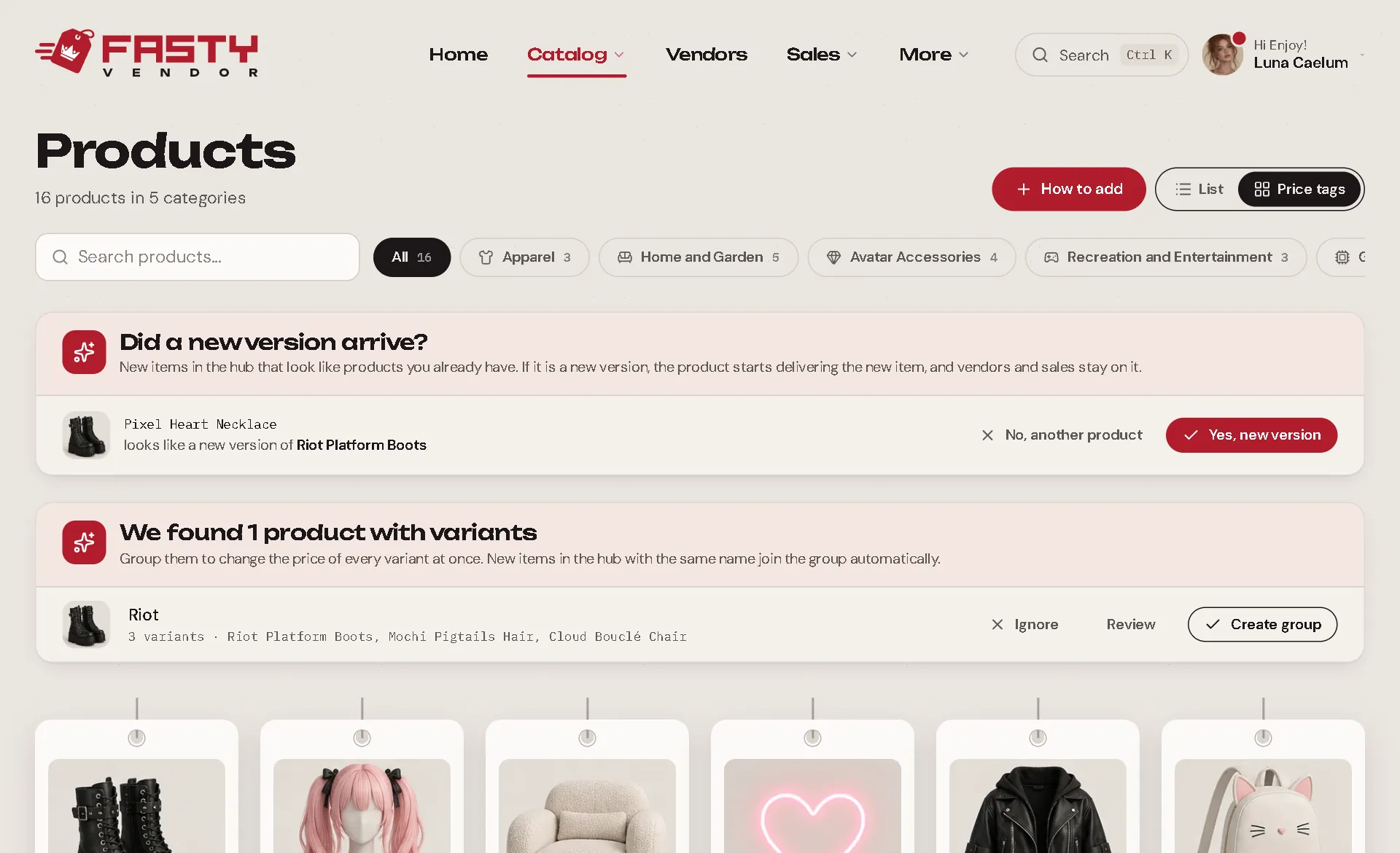
- Price tags: big tags with the picture, the price, the sales of the last 7 days and how many vendors show it.
- List: a table where you can select many products at once and change their price or category, pause them or resume them.
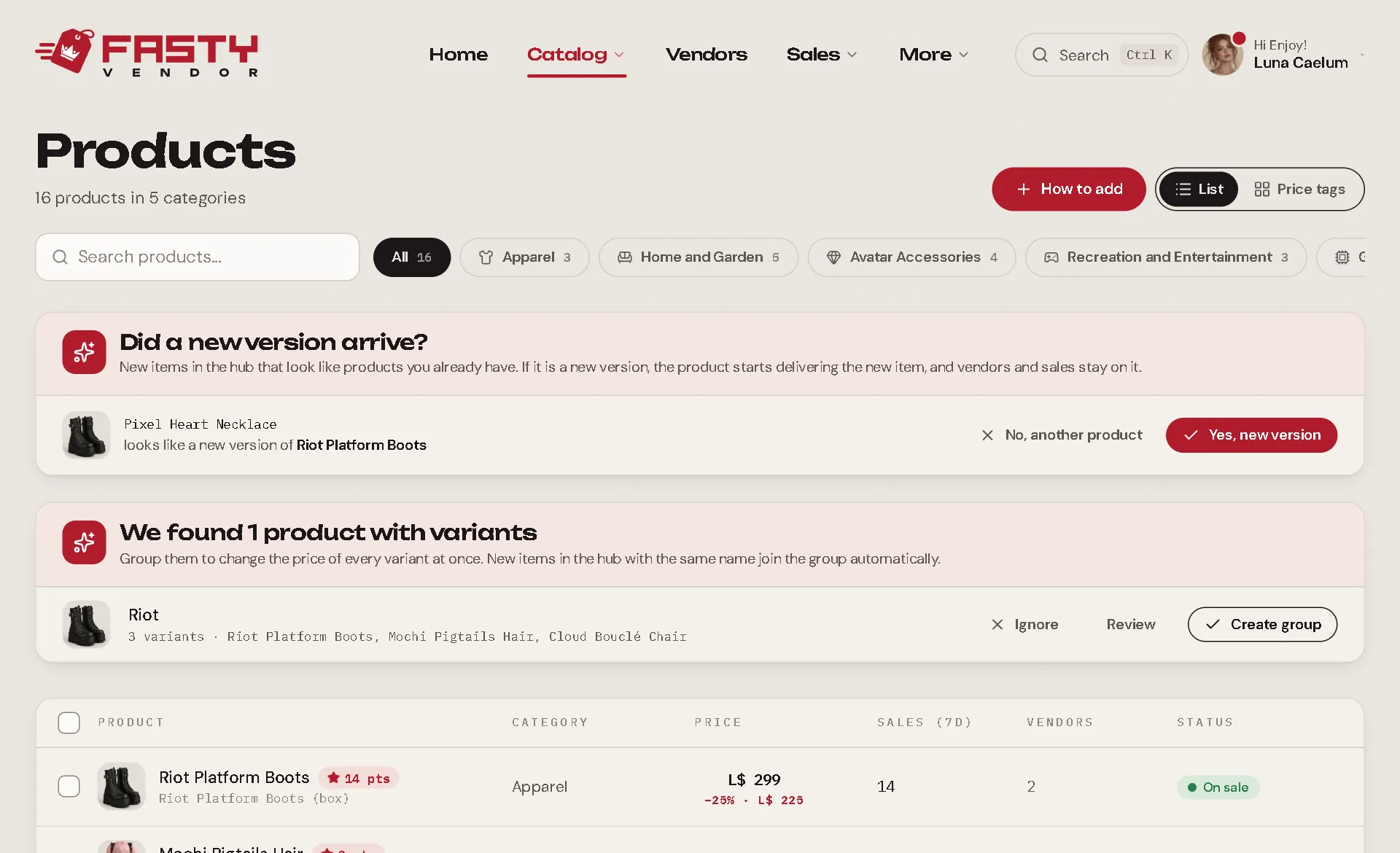
Use the category chips and the search box to find things fast. The categories are the same as the Second Life Marketplace's.
The product sheet
Click a product to open its sheet.
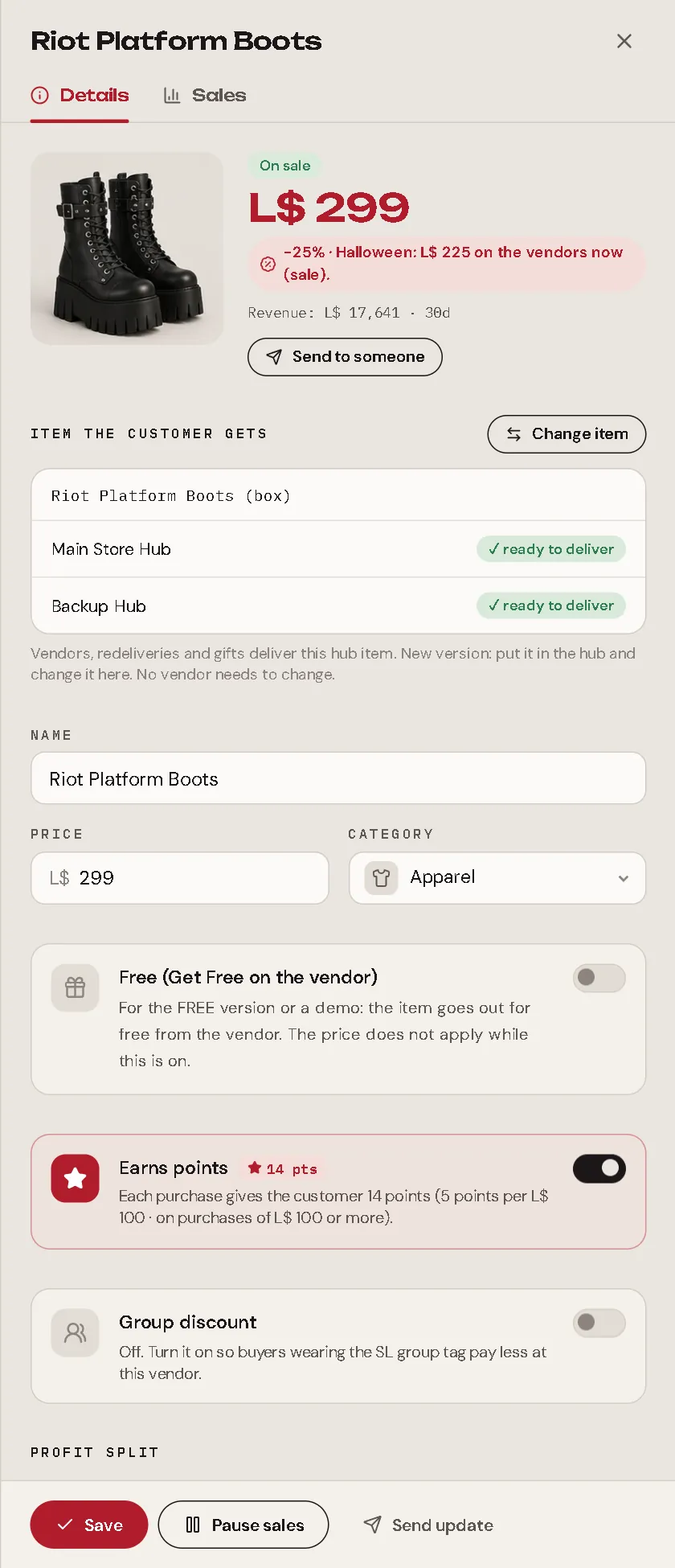
| Field | What it means |
|---|---|
| Item the customer gets | Right under the group (if the product is in one): the hub item this product delivers, which hubs have it (ready to deliver), its previous versions, and Change item. |
| Name | What customers see on the vendor and on their receipt. |
| Price | In L$. Your vendors update in about a second when you save. During a sale, the sale price shows under it. |
| Category | Where it shows up in your catalog filters. |
| Free (Get Free on the vendor) | For a FREE version or a demo. See Free products. |
| Earns points PRO | Whether buying it gives loyalty points. See Loyalty Points. |
| Group discount | Members wearing your Second Life group tag pay less. See SL Group Discount. |
| Profit split | Share each sale with partners. See Profit Sharing. |
| Description | A private note, only for you. |
| Showcase (30 days) | How many times people touched vendors of this product, how many bought, and the conversion. |
At the bottom of the sheet:
- Save your changes.
- Pause sales: the vendors of this product stop taking payments until you press Resume selling.
- Send update: send a new version to everyone who bought it. See Product Updates.
Limited quantity
Sell only a set number of units: the vendor shows how many are left and stops selling on its own when they run out. See Limited Quantity.
Free products
Turn on Free (Get Free on the vendor) for a FREE version or a demo. The vendor then shows FREE and a Get Free button: whoever touches it gets the item without paying, and still gets a receipt. The price doesn't apply while this is on.
In a variation group, a demo priced at L$0 counts as free on its own.
Send a product to someone
Need to give a product to a customer, a friend or a contest winner? Open the product and press Send to someone, right below the price.
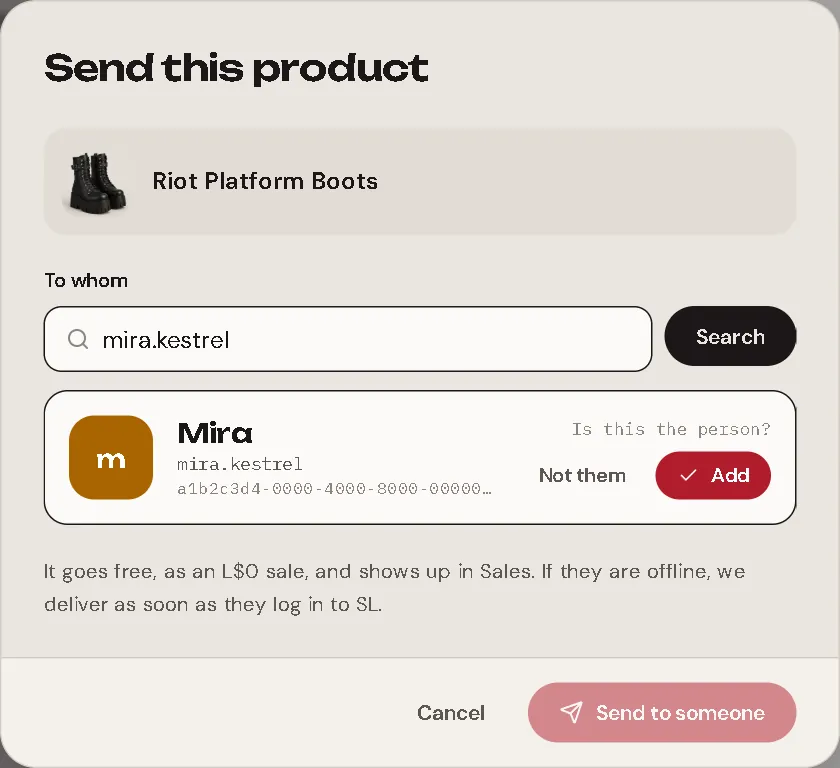
Type their Second Life username and press Search. Their picture and name appear, so you know it is the right person. People you used recently show up as shortcuts.
Press Send to name.
The item goes out from your hub as an L$0 sale, so it shows up in Sales as Sent from the panel and the person can redeliver it like any purchase. If they are offline, the hub waits and delivers as soon as they log in. After 24 hours it sends anyway: Second Life keeps the offer for them. It is not counted as revenue.
Along with the item, the person gets an IM from the hub saying your store sent it, which product it is, and a link to the receipt. A redelivery doesn't send the IM again.
Brand-new avatars
Sometimes Second Life takes a while to answer for a very new avatar. If Fasty can't find the username yet, you see a warning: it doesn't mean the avatar doesn't exist. If the name is right, press Continue with name: Fasty sends the product on its own as soon as Second Life confirms who it is. The same goes for every place where you type a username (profit split, coupons, gift cards, team, bloggers): a name Second Life hasn't confirmed yet never blocks you, and the action finishes by itself once it does.
Only the store owner and roles with Send a product to someone for free see this button. Gift cards can't be sent this way: use More → Gift cards → Give a card instead.
When an item leaves your hubs
If you take an item out of every hub, its product shows a Not in a hub notice. Did you put a new version in the hub? Use Change item. Was it a product you stopped selling? Press Remove from catalog. The product leaves the list, the group suggestions, the search and the vendors, and its old sales stay in the history. If the item ever comes back to a hub, the product comes back too.
The Sales tab
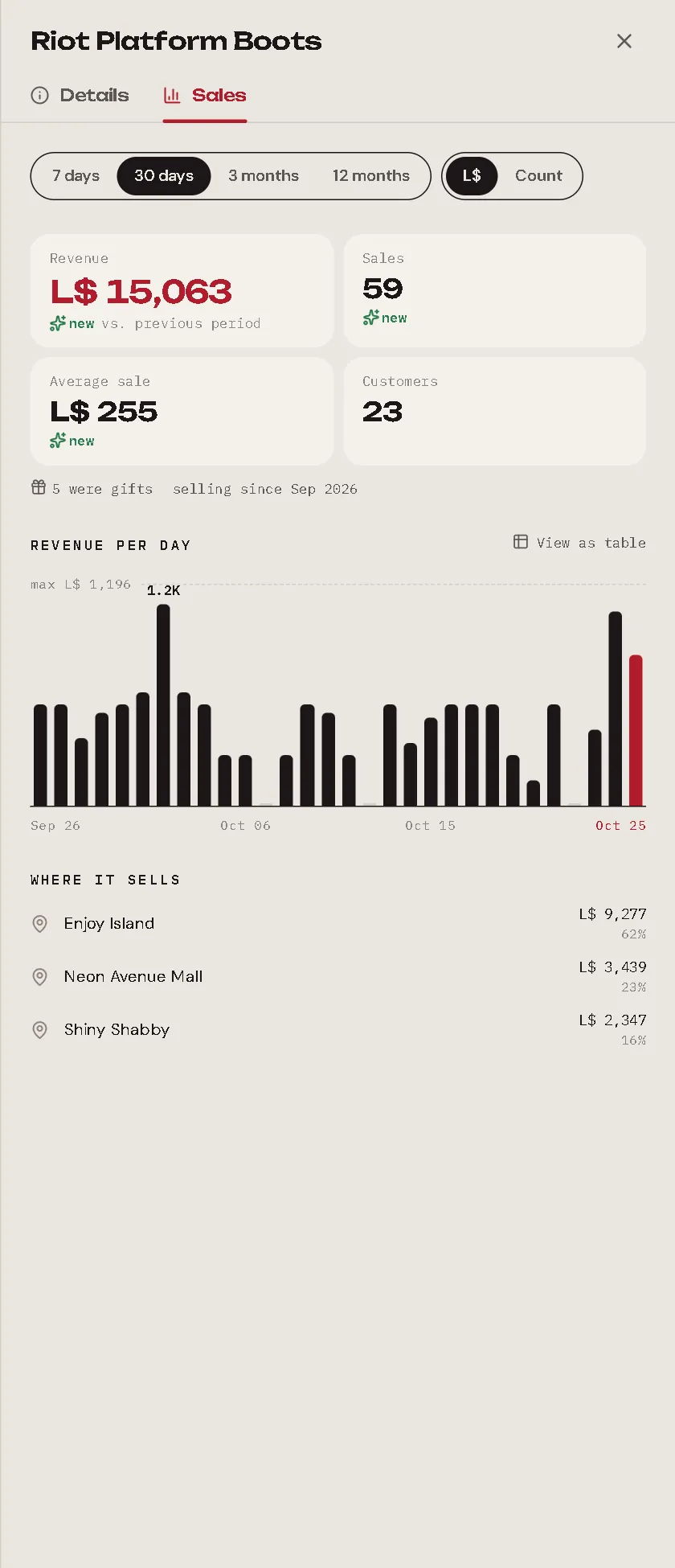
The Sales tab of the sheet shows how the product sells: revenue, sales, average sale and customers for the period you choose, compared with the period before. Below it, a chart and where it sells (by land).
Products with variations
If you sell the same thing in many colours, put them in a group, so one price change updates all of them. Fasty notices products that look like variations and suggests the group for you. See Variation Groups.