
Product Updates
Fixed a bug, added a colour, made a version 2? Send it to everyone who already bought the product, in a few clicks. Fasty finds the owners, and your hubs deliver at a steady pace in the background. New sales always go first.
Send an update
You can start from Catalog → Updates → New update, or from a product (or a group) with the Send update button.
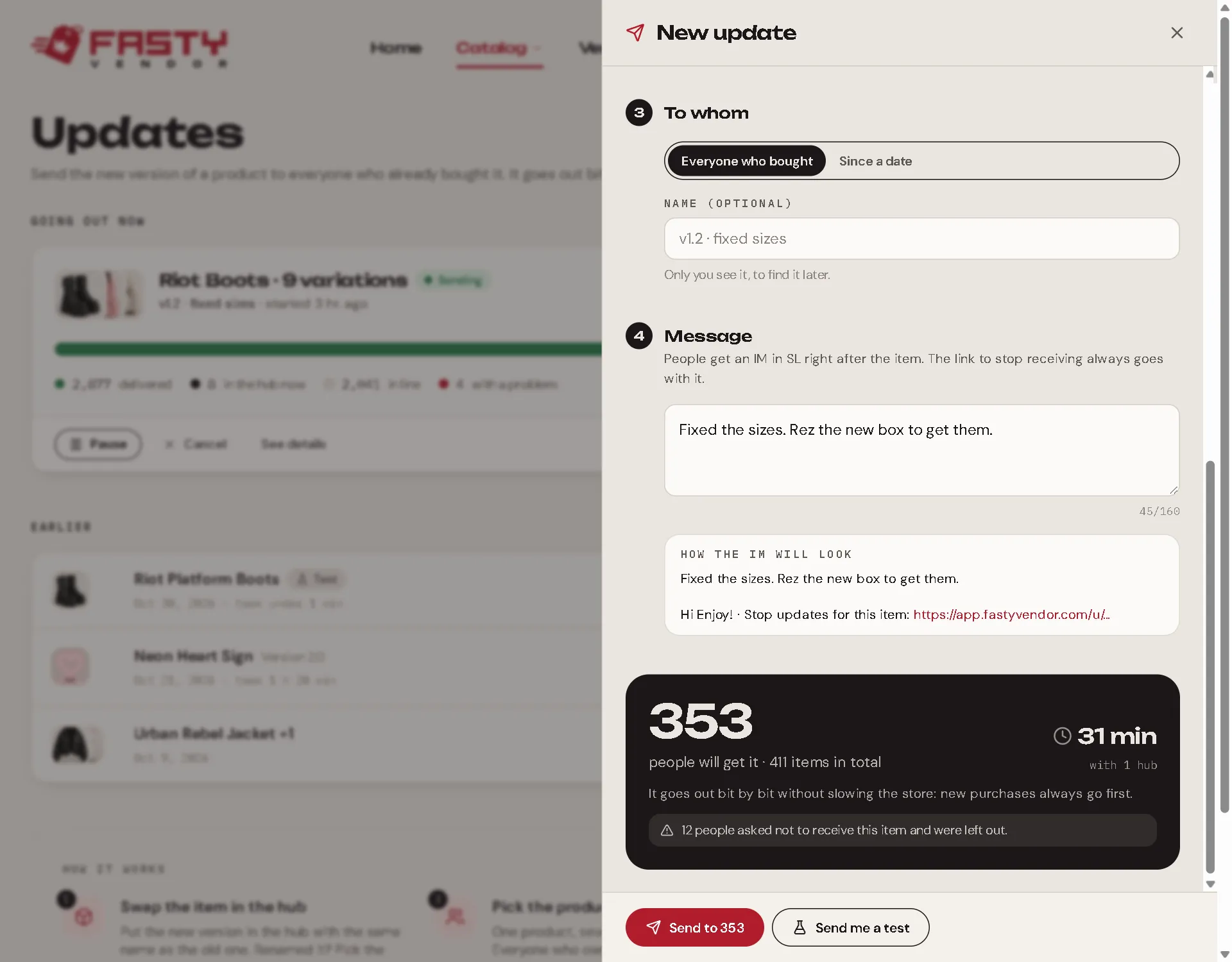
What to update. Pick one product, several, or a whole variation group. Next to each one you see how many people own it.
Which item goes. Each product sends the item it delivers now. When the new version is already the product's item (it switched on its own or you changed it), there is nothing to choose. You can still pick another item from your hubs for this update only.
Who receives it. Everyone, or only people who bought from a date on (handy when only recent buyers had the problem).
The message. Write what changed, in up to 160 characters, or leave it empty to use the default. The panel shows how the IM will look. See The message.
Check the numbers. At the bottom, Fasty shows how many people will receive it, how many hubs will share the work and about how long it will take.
Send a test to yourself first. Press Send me a test and check the item and the IM. When you are happy, press Send to N people.
One copy per person
Somebody who bought the same product three times gets one copy. A gift goes to the person who received it, never to the one who paid. Refunded sales are left out.
Who receives it
Everyone who owns one of the products you picked, from every kind of purchase: vendor sales, Marketplace sales, gifts received, gacha prizes, points rewards, giveaway prizes, blogger copies, and the sales history you brought from CasperVend.
The most recent buyers go first: they are the ones most likely to be around.
People who stopped receiving updates for that item are left out, and the panel tells you how many.
The message
Right after the item, each person gets an IM from your hub. It carries your message, or the default one when you leave it empty, followed by a link to stop receiving updates:
You received an update for Minotaur Horn.

Hi Enjoy! · Stop updates for this item: https://app.fastyvendor.com/u/…
The link always goes with the message, and each person gets their own. A very long message full of % or | can be refused, since those characters take up more room. Remove a few and send again.
Stopping updates
The link opens a page with the item and a Stop receiving button. Opening the page changes nothing: only the button does, and the same link brings updates back with Receive again.
- It covers the whole variation group. Someone who stops updates for one colour stops them for all the colours. A product without a group stops on its own.
- The person keeps the item. They only stop getting new versions.
- If an update is running, they leave the line right away. A delivery already in the hub can still arrive.
- In the update's list of people, they show as Asked not to receive it.
Following it
Catalog → Updates shows every update that is running, each with a progress bar:
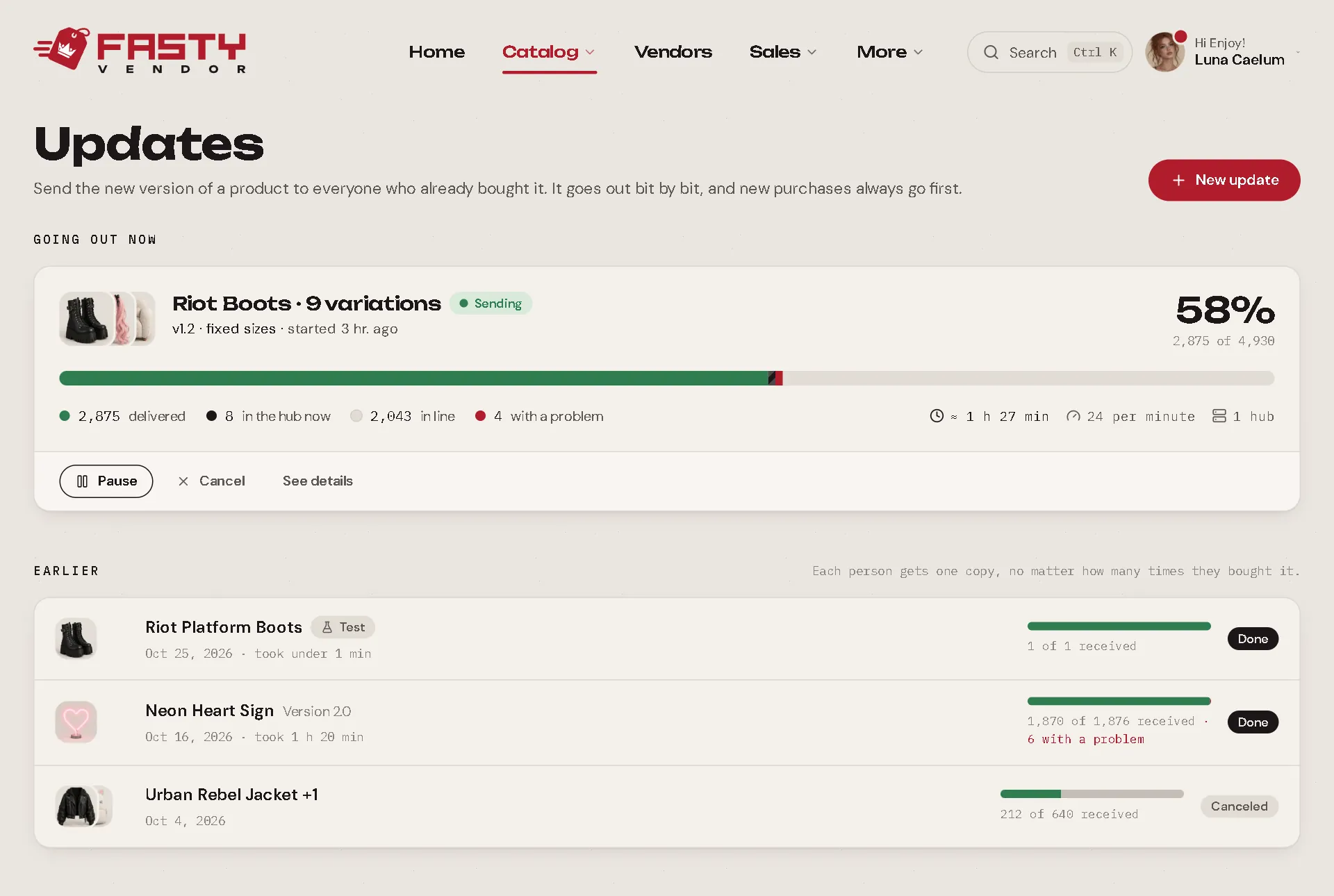
- Delivered: the item reached the person.
- In the hub now: the hub is giving it out.
- In line: waiting for its turn. The hub takes a few at a time.
- With a problem: the hub could not find or copy the item. Check that the item is in a hub and copyable, then retry.
Press Pause to stop sending (what is already in the hub still goes out), Resume to continue, or Cancel to stop for good. Click an update to see the list of people and the result for each one.
How fast is it?
About 800 people per hour for each hub that has the item (each person takes a delivery and an IM). To go faster, put the item in more hubs: they share the list on their own. Your hubs deliver updates only when they have no sale to deliver, so a customer buying right now never waits behind an update.
People who are offline get the item as a normal offer that waits for them in Second Life.
Good to know
- Hubs need the current script to send updates, because the link has to go with each one. The panel names any hub that needs it: drop the new
Fasty Hubscript from the kit into it. An older hub keeps selling and delivering purchases as usual. - Each product can have one update running at a time. Finish, or cancel, the current one before starting another for the same product.
- If no hub has the item for 14 days, the people still waiting are dropped (their row says why). Put the item back in a hub before that.
- Updates are part of Basic: delivering and redelivering are never limited.