
Updating Your Vendors
When a new vendor script comes out, you don't need to open your vendors one by one. Wear the Fasty Updater HUD, press a button, and it updates every vendor in the region for you.
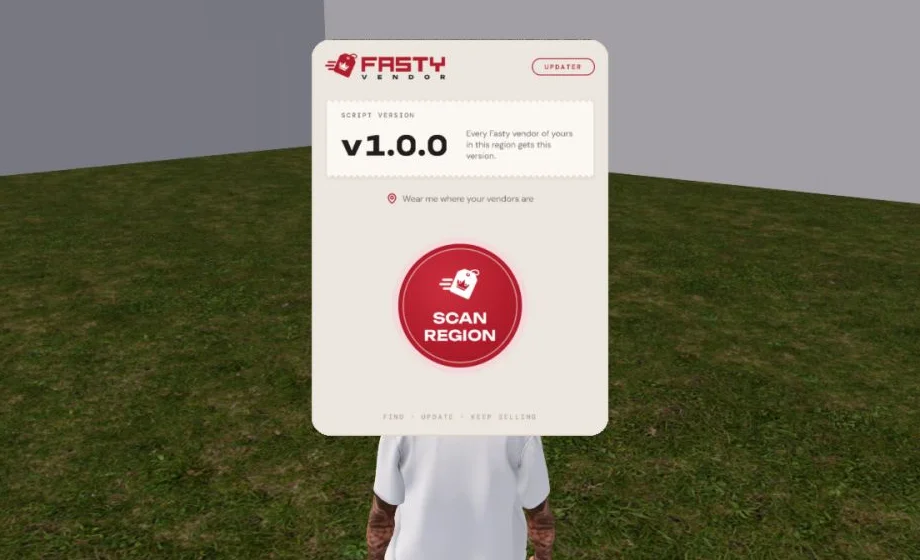
The HUD is free and comes in your Fasty kit, in the folder [Hi Enjoy!] Fasty Vendor System.
Before you start
Older vendors need one update by hand
The HUD can only talk to vendors that already run v1.0 or newer. Older ones don't show up in it. If your vendors were set up before v1.0, update them by hand once. After that, the HUD does the work.
To update a vendor with the HUD:
- You must own the vendor.
- The vendor must be in the same region as you. A store in three regions means three visits.
- You must be wearing the HUD. It doesn't work rezzed on the ground.
Set aside a few minutes when you can stay at your computer. You'll need to click every permission window, and a vendor doesn't sell until you do.
Update your vendors
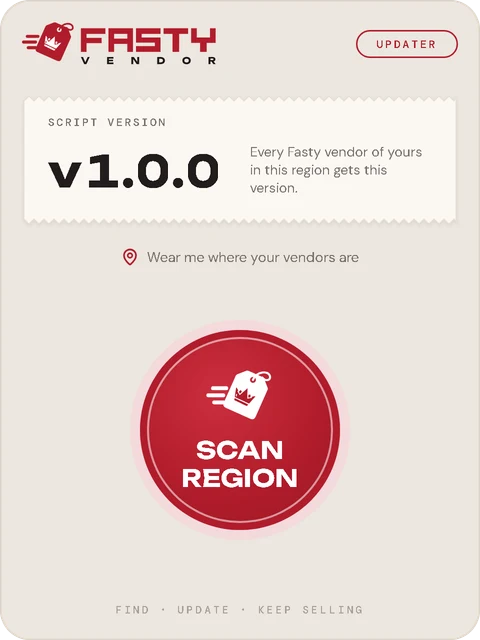
Wear the HUD. Go to the region where your vendors are. In your inventory, right-click Fasty Updater HUD and choose Add. Add keeps your other HUDs on.
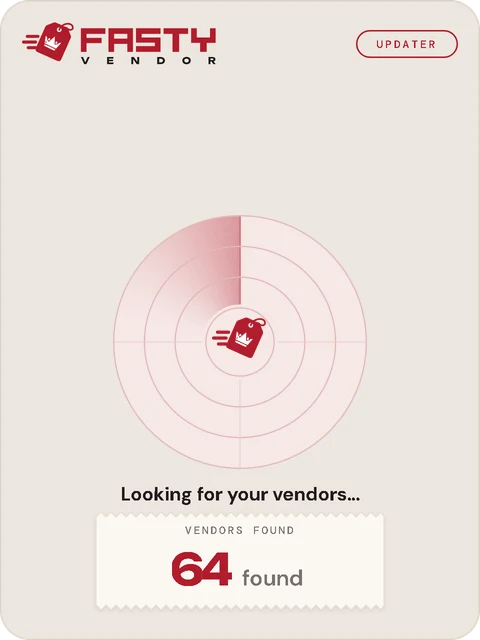
Press Scan Region. The HUD asks every vendor of yours in the region which version it runs. It takes a few seconds, or about half a minute in a big store.
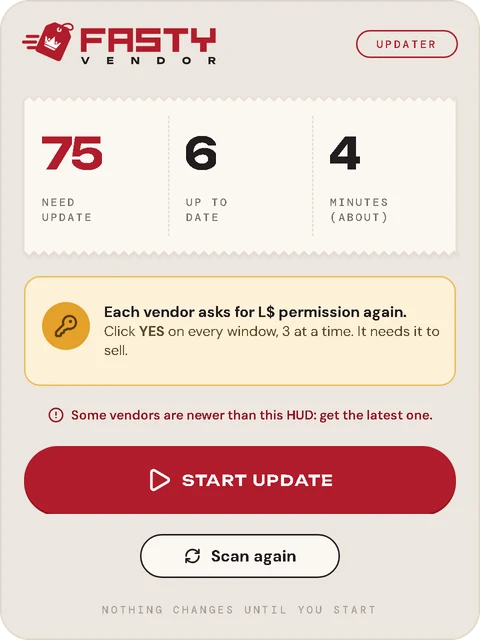
Check the summary. You see how many vendors need updating, how many are already up to date, and about how long it takes.
Press Start Update. The HUD sends the new script to 3 vendors at a time.
Click Allow access on each window. Each vendor asks for permission again, and you'll see a window for each. Read about it below.
The next 3 start by themselves. As soon as you allow all 3, the HUD moves on. Keep going until the end.
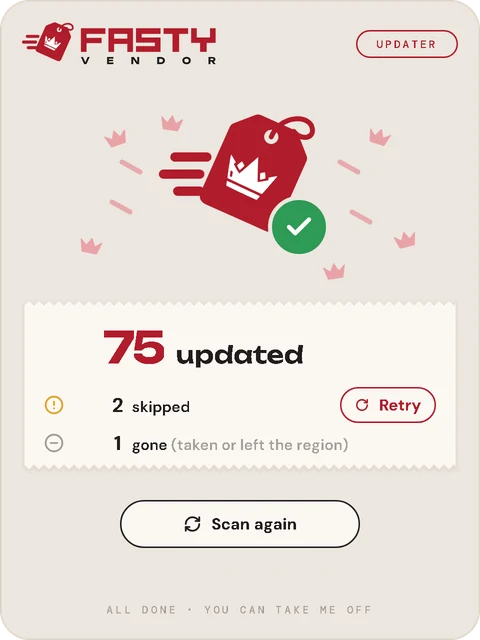
Take the HUD off. When you see All done, right-click the HUD and choose Detach, or do the next region first.
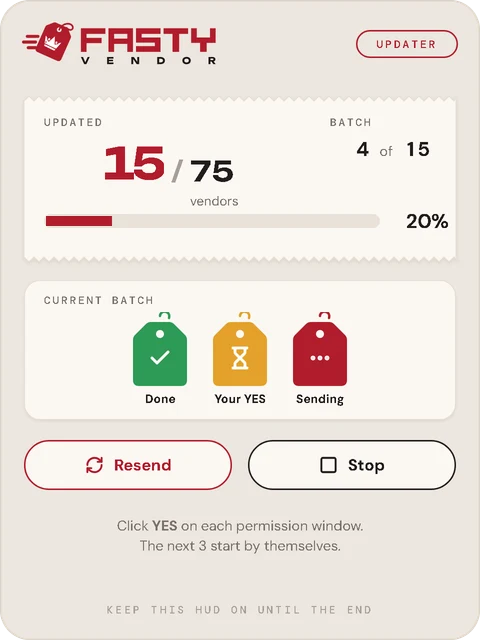
The tags show how each vendor of the batch is doing:
| Tag | Meaning |
|---|---|
| Sending | The script is on its way to the vendor. |
| Your YES | The vendor has the new script and is waiting for you to click Allow access. |
| Done | Updated and selling. |
| Gone | The vendor was picked up or left the region. |
Your connection, the product, the price and all the settings of each vendor stay as they were.
The permission window
For each vendor, Second Life shows this window:
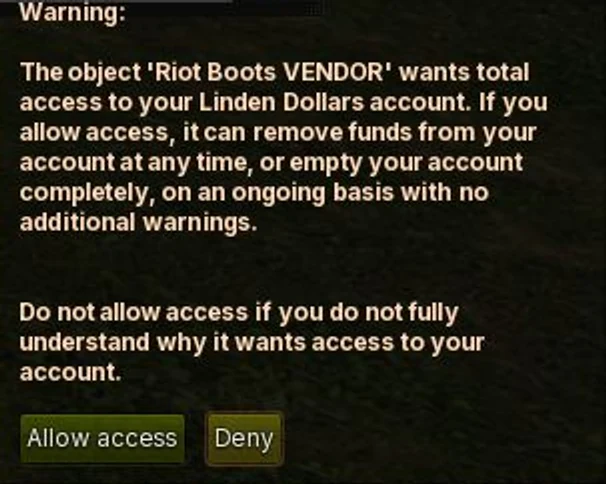
Click Allow access. When the HUD says Click YES, or shows Your YES, this is the button it means.
The window looks scary because Second Life uses these same words for every script that asks for this permission. The object's name is at the top, so you can check it's your vendor.
Why it asks for permission
A vendor needs this permission to work:
- To pay your partners their share of each sale.
- To give money back when a purchase can't go through.
- To carry out the L$ you send from the panel.
It never decides to spend on its own. See how your L$ are protected.
Second Life ties this permission to the script itself. A new script always starts without it, and nothing can pass it along, so each vendor must ask you again. That's why no tool can update vendors without you clicking.
A vendor without permission doesn't sell
The moment the new script arrives, the old one is gone. Until you click Allow access, that vendor can't take payments. So when you start, finish the job.
Where did the window go?
Second Life shows only a few windows at a time. That's why the HUD works 3 by 3. If you missed one, or other notifications got in the way, it's waiting as a small icon in the bottom right corner of your screen:

Your viewer may show these in a slightly different place. Click the icon and the window opens again.
If you don't answer
When 45 seconds go by without the batch finishing, the Your call card comes up. Nothing is lost: you can still click the windows, and the card goes away by itself when the batch finishes.
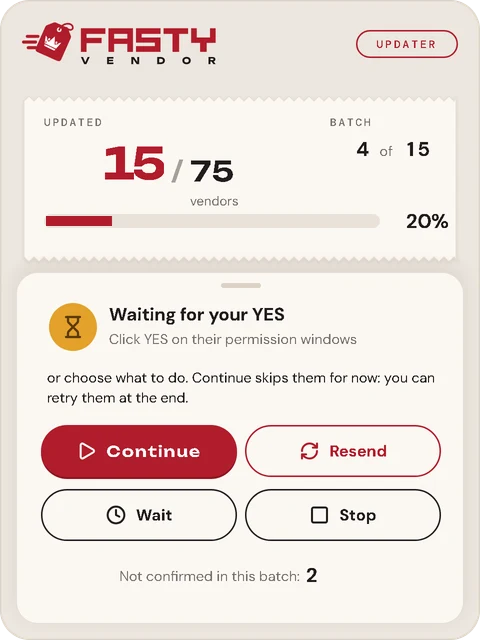
| Button | What it does |
|---|---|
| Continue | Skips the ones still waiting and moves to the next batch. You can retry them at the end. |
| Resend | Sends the script again to the ones still waiting, which opens new windows. |
| Wait | Hides the card for 45 more seconds. |
| Stop | Goes back to the summary. |
Skipped vendors aren't selling
A skipped vendor already has the new script, so it's waiting for your permission. At the end, press Retry to go through them again. A permission you click late still counts.
The first update, by hand
Vendors from before v1.0 can't talk to the HUD. They need the new script once, by hand:
Find Fasty Vendor v1.0 in your kit.
Right-click the vendor, choose Edit, and open the Content tab.
Drag Fasty Vendor v1.0 into it. You don't need to delete anything: the new script removes the old one by itself and tells you in chat.
Click Allow access on the permission window.
The vendor keeps its connection, product and settings. You can do this little by little: old and new vendors work side by side, and your old vendors keep selling until you get to them.
What the HUD might tell you
| Message | What it means | What to do |
|---|---|---|
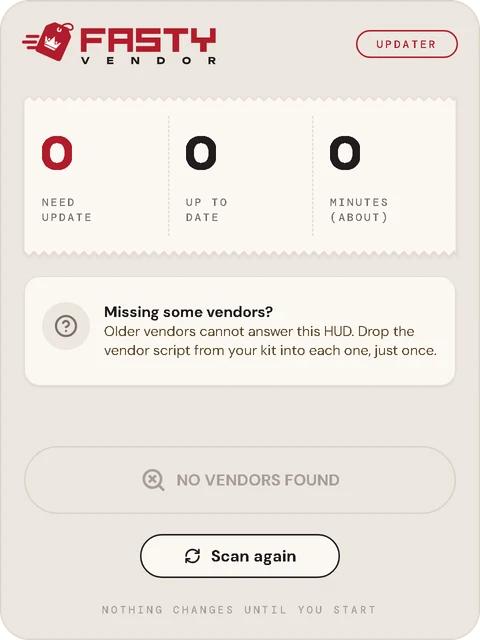
| No vendors found | No vendor of yours answered in this region. | Check you're in the right region. If your vendors are older than v1.0, update them by hand. |
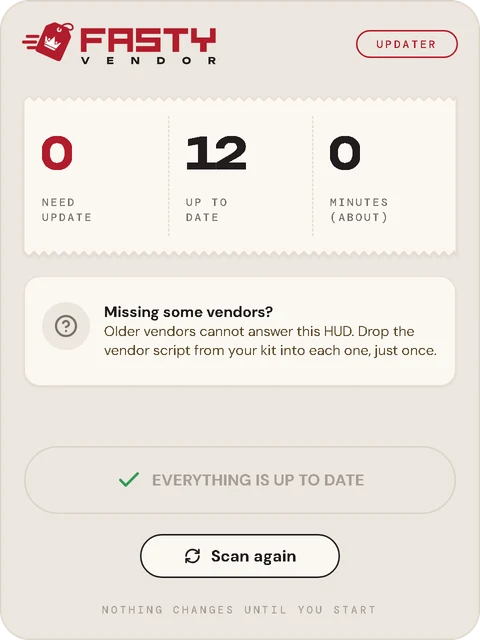
| Everything is up to date | Every vendor that answered runs this version and has permission. | Nothing. If some are missing, they're older than v1.0. |
| Some vendors are newer than this HUD | Your HUD is out of date. | Get the latest HUD from your kit. |
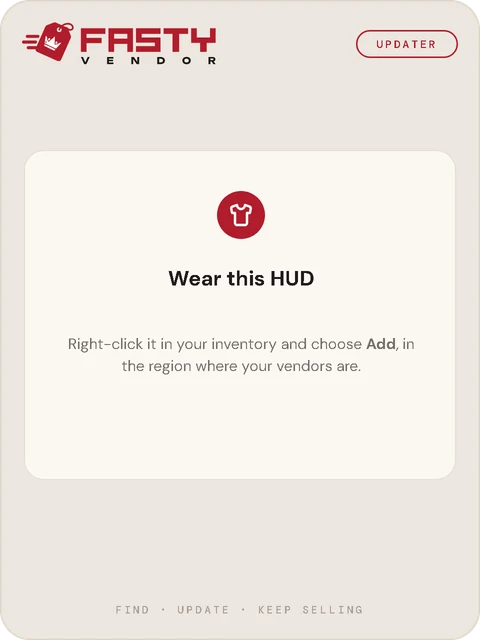
| Wear this HUD | The HUD is on the ground. | Right-click it in your inventory and choose Add. |
| This HUD is incomplete | A part is missing inside it. | Get a new one from your kit. |
Good to know
- Sales in progress are safe. A sale that was already paid stays saved and is delivered as usual, even if the script changes in the middle.
- Teleporting starts over. Changing region or taking the HUD off goes back to the first screen. Press Scan again: vendors already updated show as up to date.
- Scan again any time. It's the easiest way to check nothing was left behind.
- Pressing Deny works like skipping: the vendor stays without permission, and doesn't sell.
- Vendor asked again later? Touch it and it shows the window again. You can do this for any vendor that lost its permission.
- The HUD only updates vendors. Update your hubs by dropping the new script into them. See The Script Kit.