Creating a Button
In Prim Mode every linked prim with a name can be a button. Here is the full path from a prim to a working click.
Requirements
- The HUD is rezzed on the ground with
*BUILDand*FUNCTIONSinside. - The panel is open. (No project yet? See the Quickstart.)
Steps
Create the prim that will be the button and link it to the HUD. The HUD's main prim must be the root (select it last before Ctrl+L).
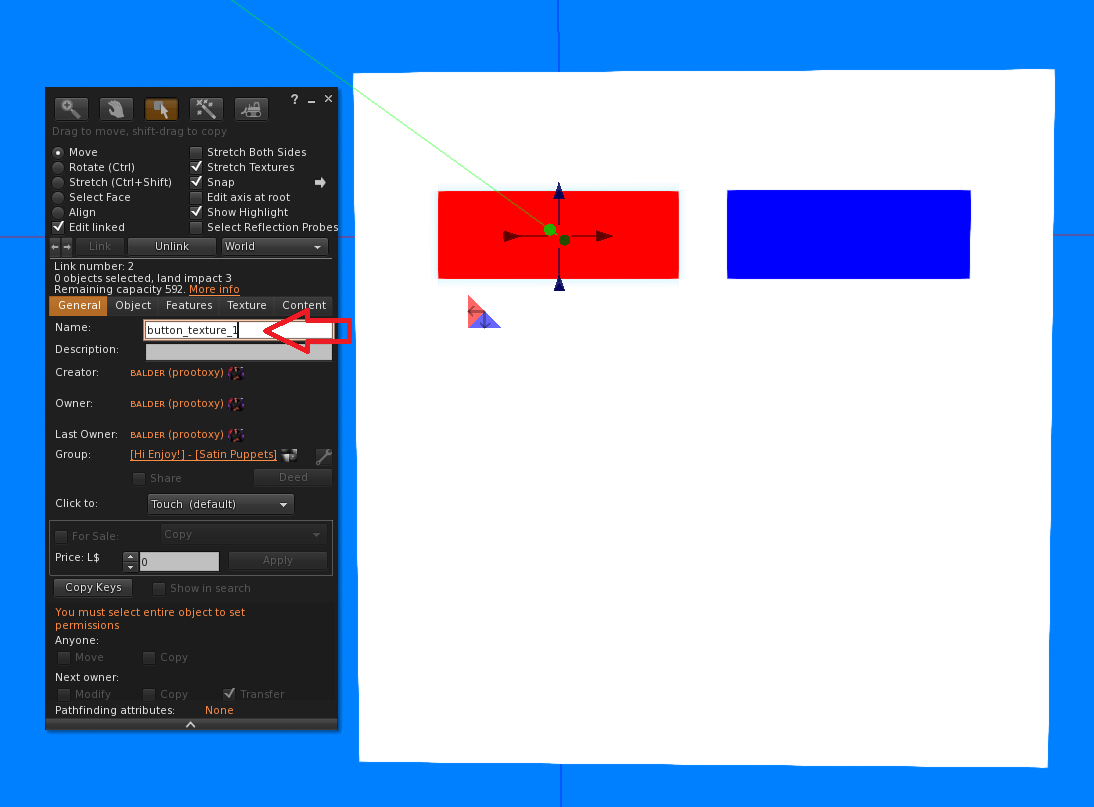
Name the prim. Use the Second Life build tool → General tab → Name. Pick something that says what the button does:
button_texture_1,btn_color_blue,play_sound.Re-scan in the panel's left column. The new prim shows up in the button list.
Click the prim's name in the list. The panel creates a function with that name and opens it.
Add actions to the function (see Creating an Action) and Save.
Build, then click the prim in-world to test.
Naming rules
- Up to 25 characters. Letters, numbers,
_,-,.and spaces. Anything else is dropped. - Names are case-sensitive:
Btn1andbtn1are different buttons. - Avoid the default
Object. Ten prims calledObjectare ten buttons you cannot tell apart. - Two prims with the same name run the same function. That is sometimes useful (two physical buttons for one action) and sometimes a bug.
The root prim as a button
The root prim (the crown 👑 in the list) can be a button too. A single-prim HUD works: the whole object is one button. For a HUD with many buttons on one prim, use UI Mode instead.
Prims that should not be buttons
Decorative parts, frames and backgrounds will still appear in the list. Simply do not create a function for them. To make a prim ignore clicks entirely (for example a frame that sits over a clickable area), set its Description to !ignore in the build tool.
Which face was clicked?
*FUNCTIONS knows which face of the prim was clicked. You can use it in a condition through the system variable !touched_face, for example to make one prim behave like several buttons.
Next
- Creating an Action
- Cloning Functions to turn one configured button into twenty.