Listing Targets
Before an action can point at a target, the panel needs to know it. Listing (scanning) asks the HUD to look around and report every target it finds.
Scan
Rez the targets on the ground near the HUD. Wearing them also works, as long as you are next to the HUD.
In the panel, click Targets in the header. The Targets Manager opens.
Click Search for targets and wait a few seconds.
The list fills with every object that has
*TARGETSand belongs to you, with its name, number of prims and how many actions use it.
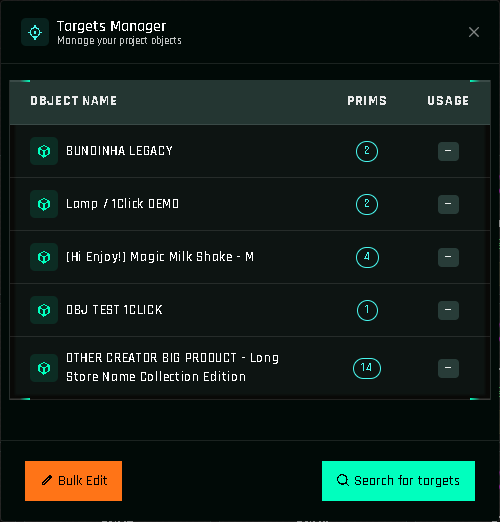
The scan also collects each target's link names and the number of faces per link. That is what the Link Names and Faces fields in actions are built from.
When to scan again
- You added or renamed prims in a target.
- You created a new target or re-created one with NEW.
- The list is empty when you open an old project on a new day: targets are re-scanned per session when needed.
Scanning again does not break existing actions: actions store the target's identity, not its position in the list.
Tips
- Rez only the targets you are working on. Every owned target nearby is listed, including unrelated products.
- Objects with the same name are hard to tell apart in dropdowns. Give each product a distinct name before scanning.
- A target you no longer need in a project can be replaced everywhere with Bulk Edit.
Targets from other creators
If you configured a target and then sold it, or you bought a product made with 1Click Maker, the target keeps working for its new owner. It will not appear in your scans anymore, because it is no longer yours.