Inserting Assets
In Second Life
Rez the HUD on the ground and open Edit → Content.
In your inventory, select every texture, sound, animation, material or object you want to use. Ctrl-click to select several.
Drag the selection into the Content tab. Second Life copies the items into the object.
Permissions
Only items you can copy can be used here. No-copy items would be moved into the HUD and lost on Finish. Use full-perm or copy-ok assets for textures and sounds.
In the panel
Open the panel (the same link as always).
Click Assets in the header.
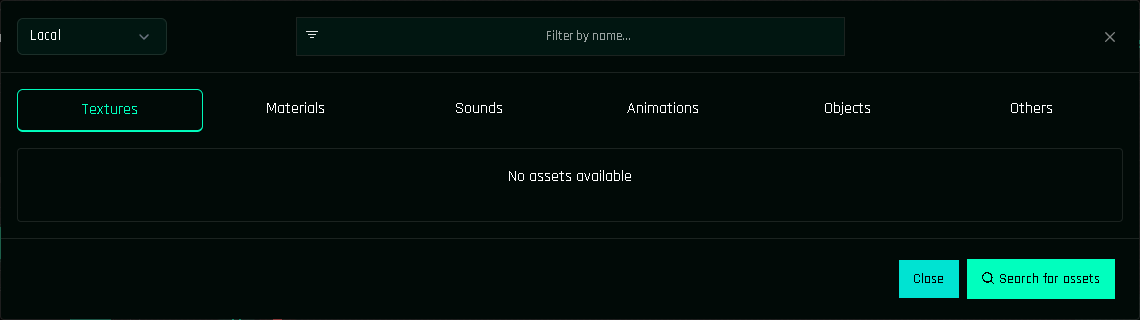
Click Search for assets and wait. The HUD reads its Content in batches; large sets take a few seconds.
The tabs fill up: Textures, Materials, Sounds, Animations, Objects, Others. Use Filter by name to find one quickly.
Using an asset in an action
In an action form, click the image slot (for example Diffuse in Blinn-Phong). The assets window opens on the right tab; click a thumbnail and it is filled in. Alternatively:
- UUID button: paste a UUID by hand, for textures that are not in the HUD.
- Remove: clear the slot.
Sounds and animations work the same way, with a name instead of a thumbnail.
Re-scanning
Added more textures? Drop them in Content and scan again. Existing assets are not duplicated; new ones are appended. Renamed a texture? Scan again so the new name shows in the gallery (the UUID stays the same, so actions keep working).
Common questions
Will my textures be visible to everyone inside the HUD?
Not after Finish. During development they are in Content like any object's inventory. Finish removes them all and keeps only the UUIDs inside protected script memory.
Can I use a texture that is not in the HUD?
Yes: use the UUID button in the action form and paste the key. The panel shows a preview when Second Life can serve it.
Do animations need to stay in the object?
Yes. Second Life can only play animations that are inside the object that starts them (for avatar animations it is the HUD; for animesh it is the animesh object). Finish keeps every animation in Content (it only removes textures, sounds, materials and other items). Give Items also keeps the whole inventory, see Give Items.