The Panel
The creation panel is the web page your HUD links to. This page is a map of it, so when the docs say "open Targets" you know where to look.
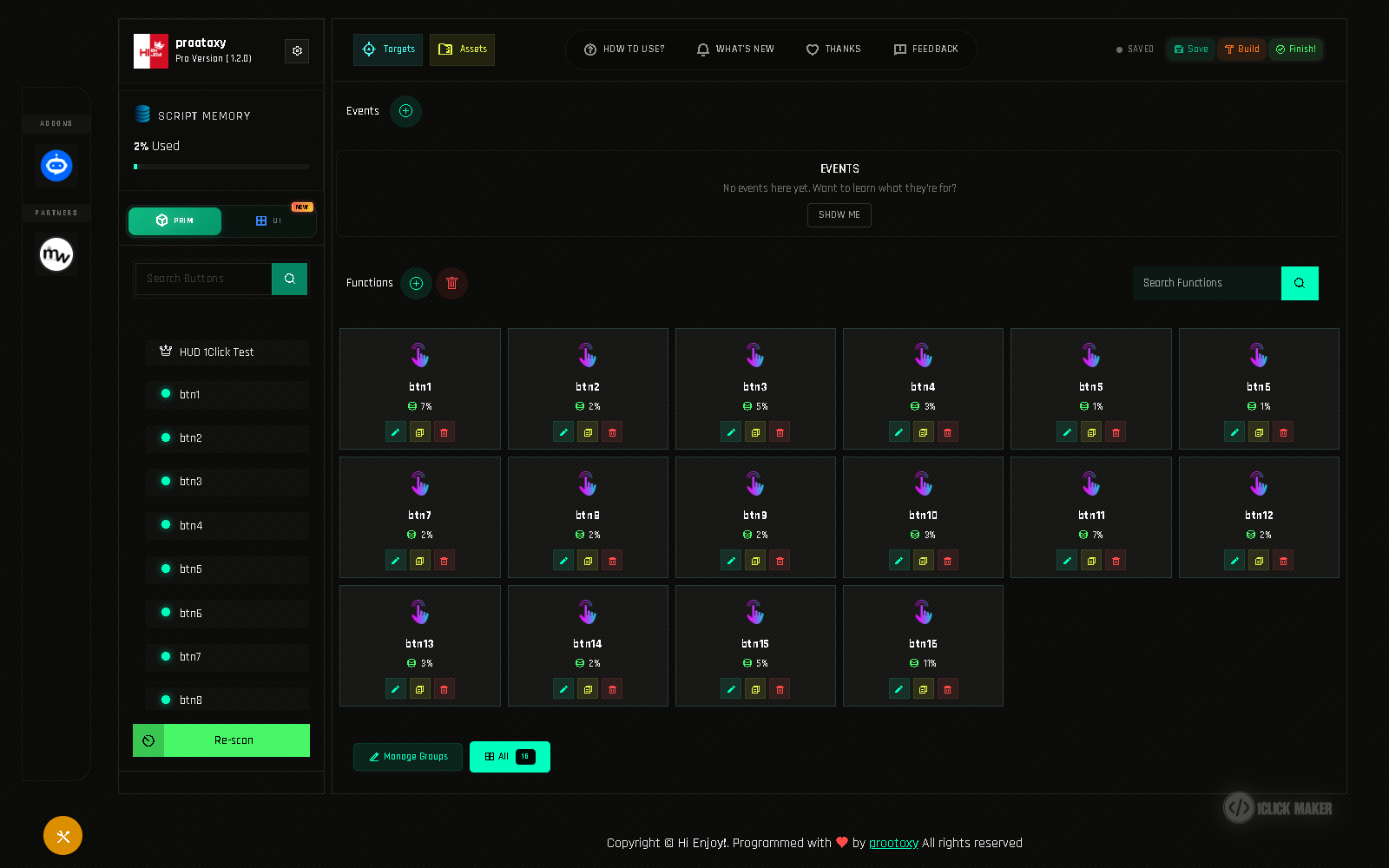
Left column
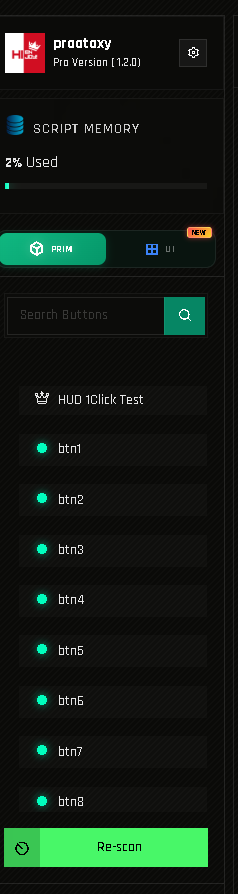
| Element | What it does |
|---|---|
| Account card | Your avatar name, plan (Free / Pro) and the panel version. |
| Script Memory | How much of your project memory is used. |
| PRIM / UI | Switches between Prim Mode (linked prims are buttons) and UI Mode (draw buttons on a texture). |
| Search Buttons | Filters the list by name. |
| Button list | Every linked prim found by the last scan. The crown 👑 marks the root prim. A green dot means the prim already has a function. Click a name to create or open its function. |
| Re-scan | Asks the HUD for its linked prims again. Run it after linking, unlinking or renaming prims. |
The thin rail on the far left holds Add-ons (such as the AI Chat add-on) and Partners.
Header

| Button | What it does |
|---|---|
| Targets | Opens the Targets Manager: scan nearby targets, see their prims, Bulk Edit. |
| Assets | Opens the assets window: textures, materials, sounds, animations, objects and other items found in the HUD. |
| How to use? | Opens these docs. |
| What's New | Release notes. A dot on the button means there is something you have not read yet. |
| Thanks / Feedback | Credits, and a form to send suggestions or bug reports. |
| Go PRO | Shown on FREE accounts. |
| Saved / Unsaved / Saving… | The save state of the project. |
| Save | Saves to the cloud (Ctrl+S). Autosave also runs by itself. |
| Build | Sends the project to the HUD in Second Life. |
| Finish! | Cleans the HUD for distribution. See Save, Build, Finish!. |
Center: events and functions
- Events row: the registered events. The + opens the event picker. Until you add one, the box offers a short in-panel tutorial (Show me).
- Functions: one card per function. Each card shows the function name, its memory share and three buttons:
| Button | Action |
|---|---|
| ✏️ green | Open the function and edit its actions. |
| 📄 yellow | Clone the function to another button or a new name. Hold Ctrl to keep the window open. |
| 🗑️ red | Delete the function. |
Drag the function's icon onto a group name in the bottom bar to group it. Function cards that use textures or materials show a thumbnail you can click for a Quick Swap.
Next to the Functions title, the green + creates a helper function and the red 🗑️ deletes all functions (it asks for confirmation).
The bottom bar has Manage Groups and one filter chip per group (All shows everything).
The function editor
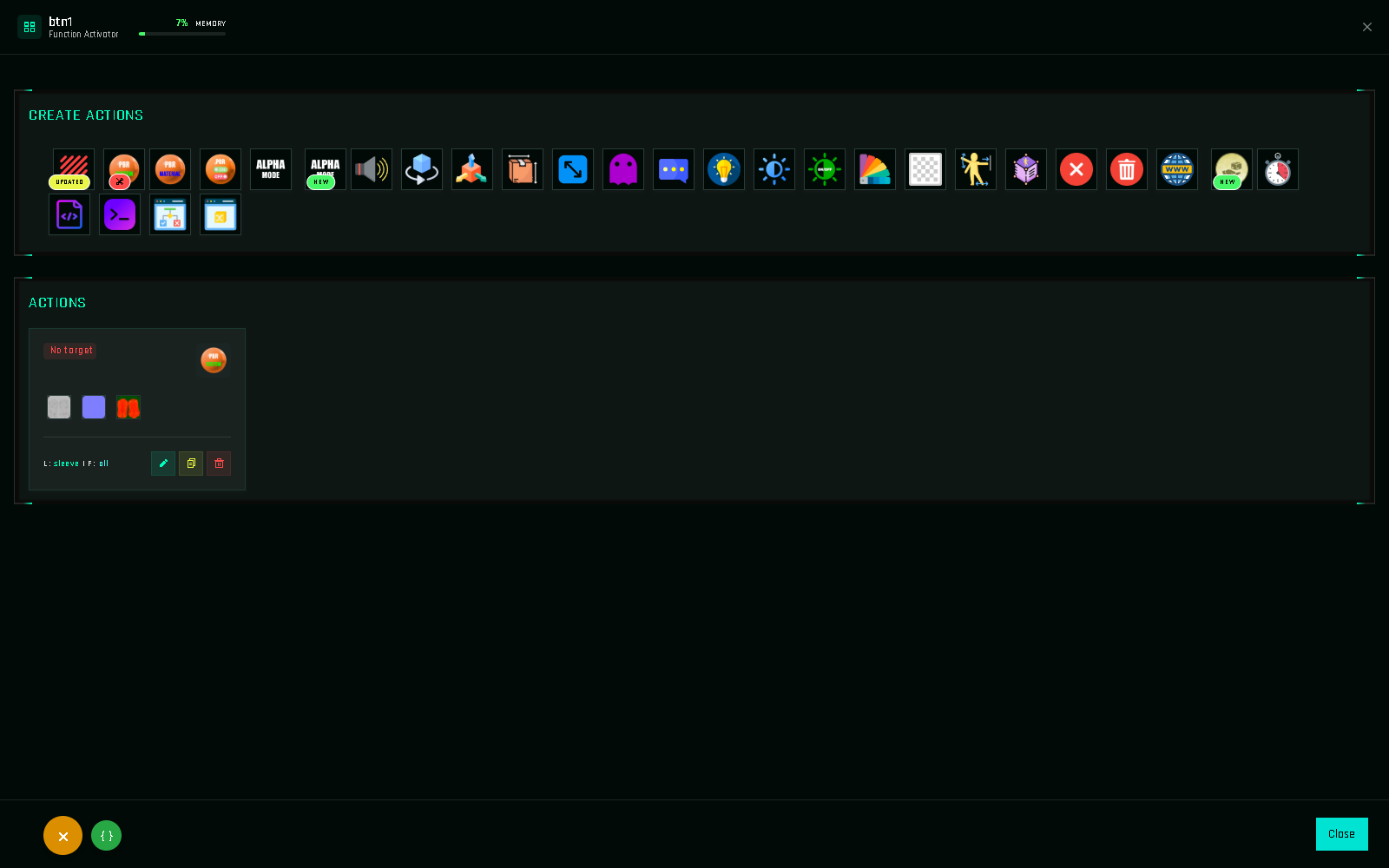
Opening a function shows two areas:
- Create Actions: one icon per available action. Hover to see its name; click to open its form. Icons marked NEW or UPDATED changed in the latest version.
- Actions: the list this function runs, top to bottom. Each card shows the target, link names (
L:) and faces (F:), plus ✏️ edit, 📄 clone and 🗑️ delete. Drag a card to reorder.
The memory bar at the top shows how much of the project memory this one function uses.
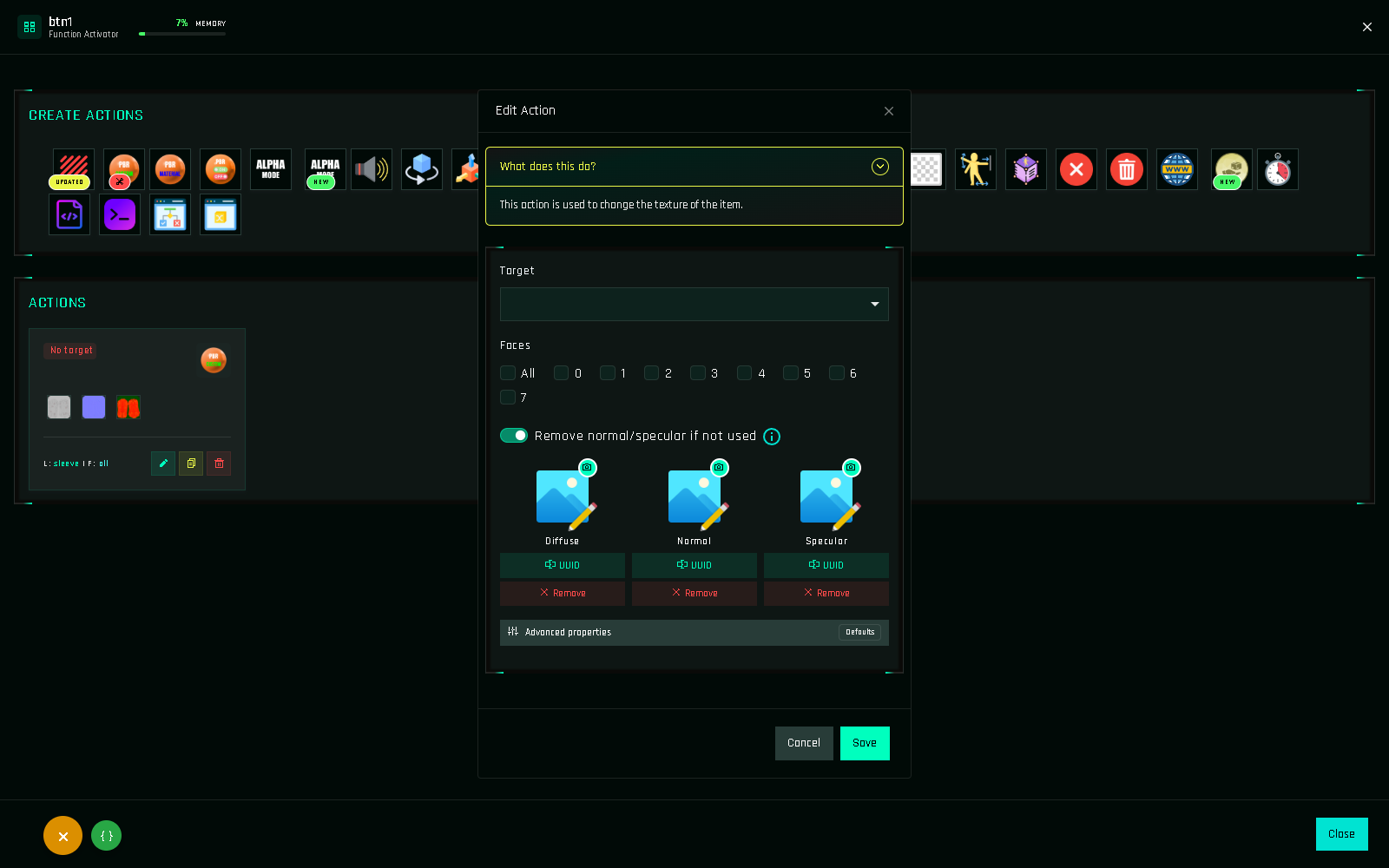
Windows you will open often
| Window | Opens with | Used for |
|---|---|---|
| Targets Manager | Targets | Listing targets, Bulk Edit |
| Assets | Assets | Scanning and picking textures, sounds, animations, materials, objects |
| New Event | + in the Events row | Registering an event |
| New Function | + next to Functions | Creating a helper function |
| Copy Function | yellow 📄 on a card | Cloning a function |
| Groups | Manage Groups | Creating and deleting groups |
| Object Variables | orange tools button → { } | Variables |
