UI Mode Adjustments
Everything you draw can be changed later without breaking its actions.
Select
- Click a button to select it. Its details appear in the left column.
- Shift + click adds or removes buttons from the selection.
- Shift + drag on empty canvas selects everything inside the rectangle.
- Ctrl+A selects every button on the current face.
- Esc deselects.
Move and resize
- Drag a selected button (or several) to move it. Alignment guides snap it to the edges and centers of other buttons; hold Alt to ignore them.
- Arrow keys nudge by 1 px; with Shift by 10 px.
- Drag the corner handles to resize.
Align and distribute
With two or more buttons selected, the left column shows align tools: left, horizontal center, right, top, vertical center, bottom, plus distribute horizontally / vertically (three or more buttons). Handy for rows of swatches.
Rename
The button name is only a label for you; in-world it does not matter. Click the name in the left column to edit it, Enter to confirm, Esc to cancel.
Color tags
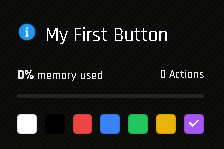
Each button can have a color: white (default), red, green, yellow, purple and more. Colors are visual tags only, they never appear in-world. Use them to mark "done", "needs texture", "check later", or to keep buttons visible over a white design.
Layers list
When nothing is selected, the left column lists every button on the current face (layers). Click one to select it on the canvas. This is the easiest way to find a small button in a crowded design.
Faces
The bar at the bottom shows the 6 faces of the cube with their textures. Click a face to edit its buttons. Each face has its own set of buttons and its own count in the toolbar.
Zoom and pan
- + / -, the toolbar buttons, or the mouse wheel zoom from 100% to 400%.
- Ctrl+0 resets.
- Alt + drag or the middle mouse button pans a zoomed canvas.
Floating preview
Toggle Floating Preview in the bottom bar to show a small live view of the button you are editing while its action form is open. The preference is remembered in your browser.
Resizing the HUD in-world
Go ahead. Button positions are stored as fractions of the face, so the HUD can be scaled to any size and everything stays clickable. Changing the texture is also fine as long as the layout of clickable areas stays where it was; if you redesign, click Reload preview and move the buttons.