The New Look Beta
The panel has a new look in beta. Your projects, your buttons and everything you build are the same in both looks: only the screen changes. Switch as often as you like.
Try it, or go back
- To try it: in the Classic panel, press New look in the header.
- To go back: press the red Beta badge next to the logo, or Classic look under Help & resources on the right.
The panel remembers your choice in this browser. The Classic look is still the default and every page of these docs works in both; where the steps differ, a New look note tells you what to click.
The layout in one minute
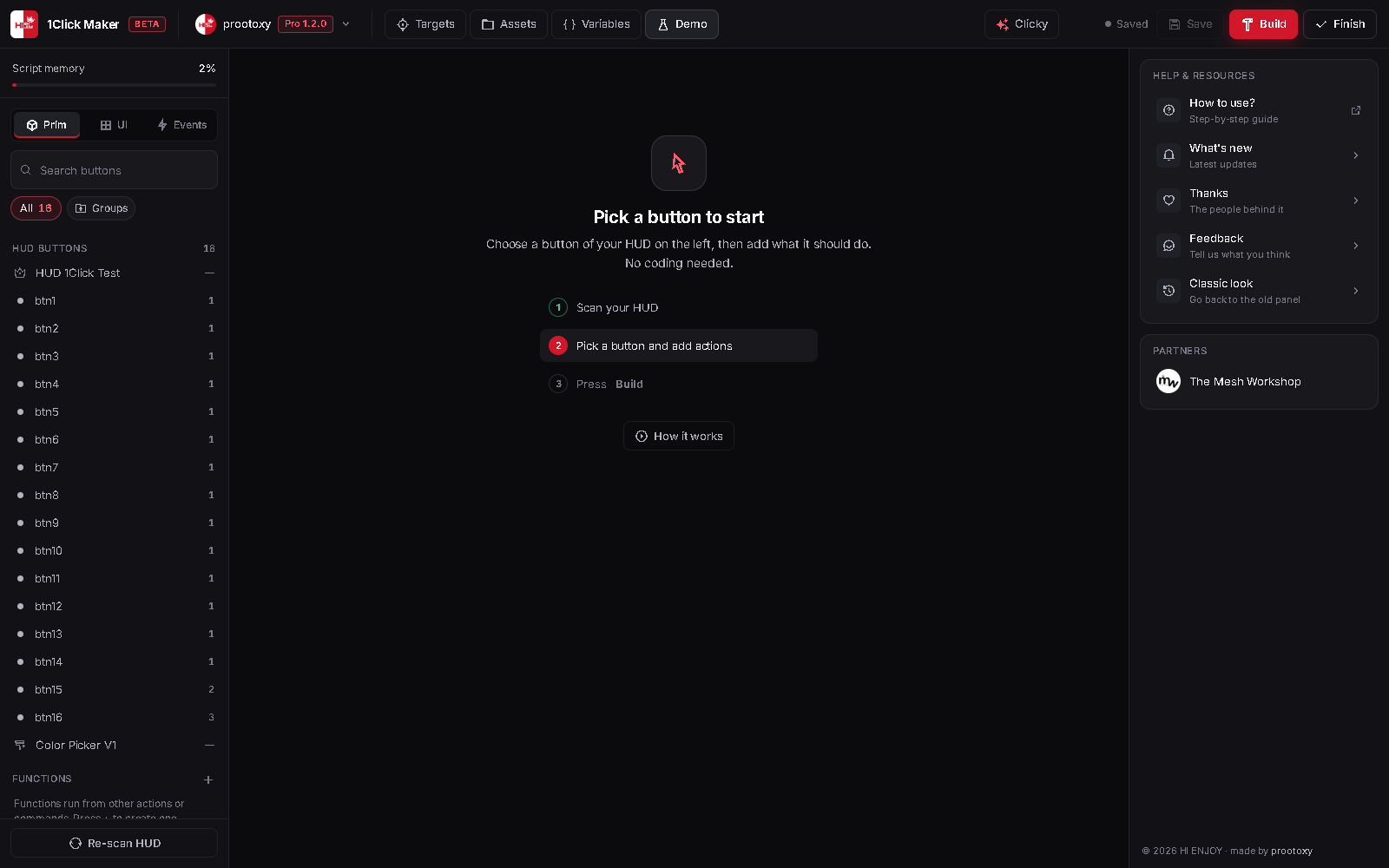
The screen has three columns and a header. You pick something on the left, work on it in the center, and edit the details on the right.
| Where | What is there |
|---|---|
| Header | Account and plan · Targets · Assets · Variables · Demo · then Clicky, the save state, Save, Build and Finish |
| Left column | Script memory · the Prim / UI / Events tabs · search · group chips · your HUD buttons · your other functions · Re-scan HUD |
| Center | Nothing until you pick a button. Then: its actions, top to bottom, and the Add action bar |
| Right column | Help & resources, or the inspector with the form of the action you are editing |

Left column: your buttons
- HUD buttons lists every prim of the last scan. The crown marks the HUD's root prim; the number on the right is how many actions a button runs (a dash means none yet).
- Clicking a button opens it in the center. There is no separate "create function" step: a button's function is created the moment you add its first action.
- Functions lists the functions that are not buttons: helper functions, and functions of buttons that disappeared in a re-scan (with a ⚠️). The + next to the title creates one.
- Group chips above the list filter it by group. Drag a button that has actions onto a chip to put it in that group; Groups opens the group manager.
- Re-scan HUD at the bottom asks the HUD for its prims again.
Center: the actions of a button
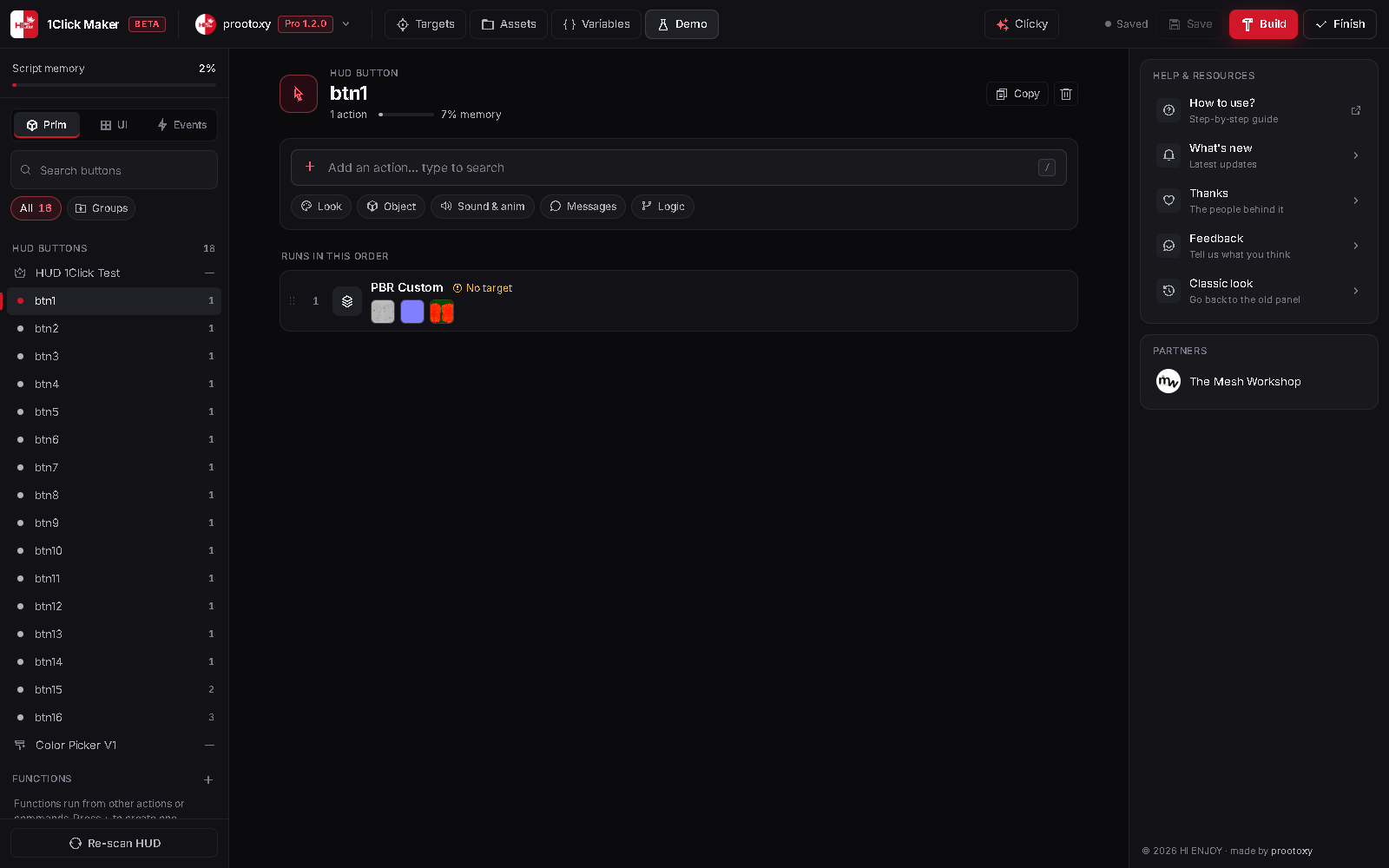
The top shows the button's name, how many actions it runs and how much of its memory limit it uses. Copy clones its actions to other buttons; the 🗑️ deletes everything the button does. When the project has groups, a group selector sits there too.
Add action: type a name to search, or pick a category (Look, Object, Sound & anim, Messages, Logic). Press / anywhere to jump to the search, Enter to pick the first result, Esc to close it. PRO actions show a crown on FREE accounts.
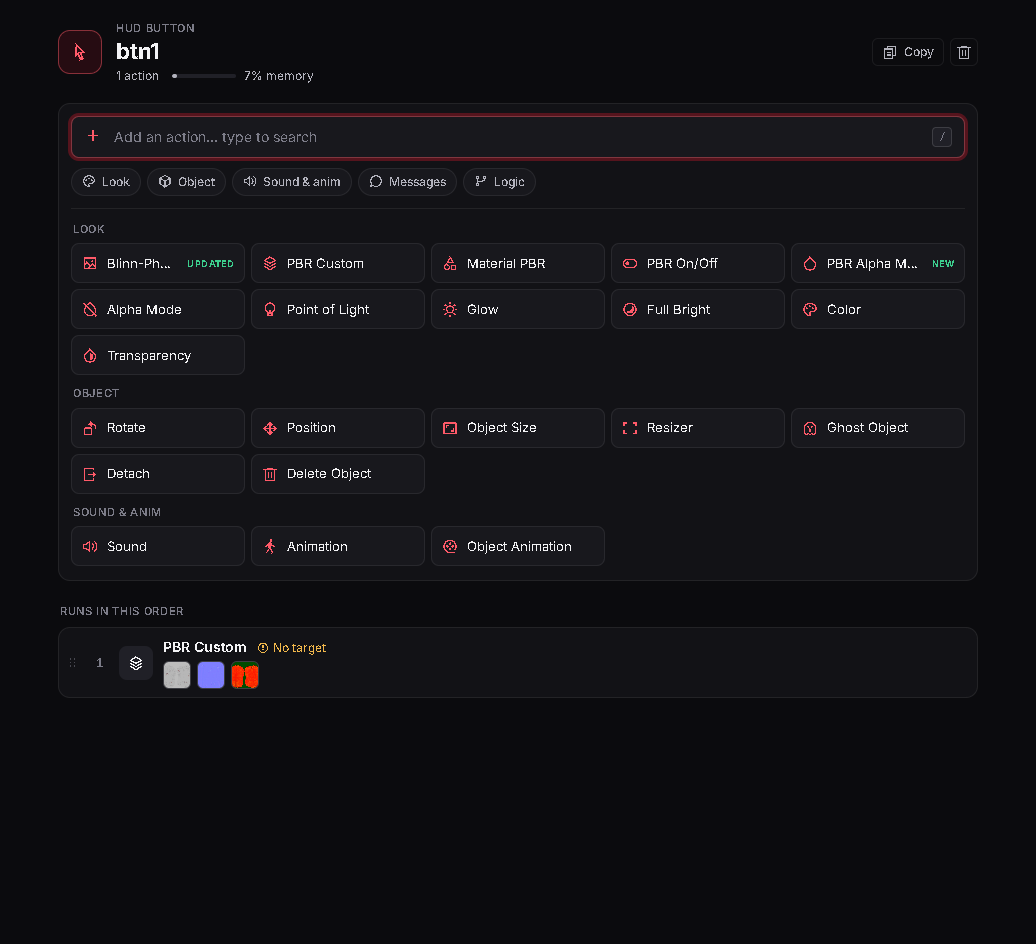
The Add action bar opened: every action, by category. Runs in this order: the actions as numbered steps, top to bottom. Drag a step by its handle to reorder; the icons on the right clone or delete it. A step with a missing target says so in yellow.
A Condition shows If true and If false under it. Click one to open that branch: a trail at the top (
btn1 › If true) takes you back.
Right column: the inspector
Click a step and its form opens on the right. This replaces the old Edit Action window.
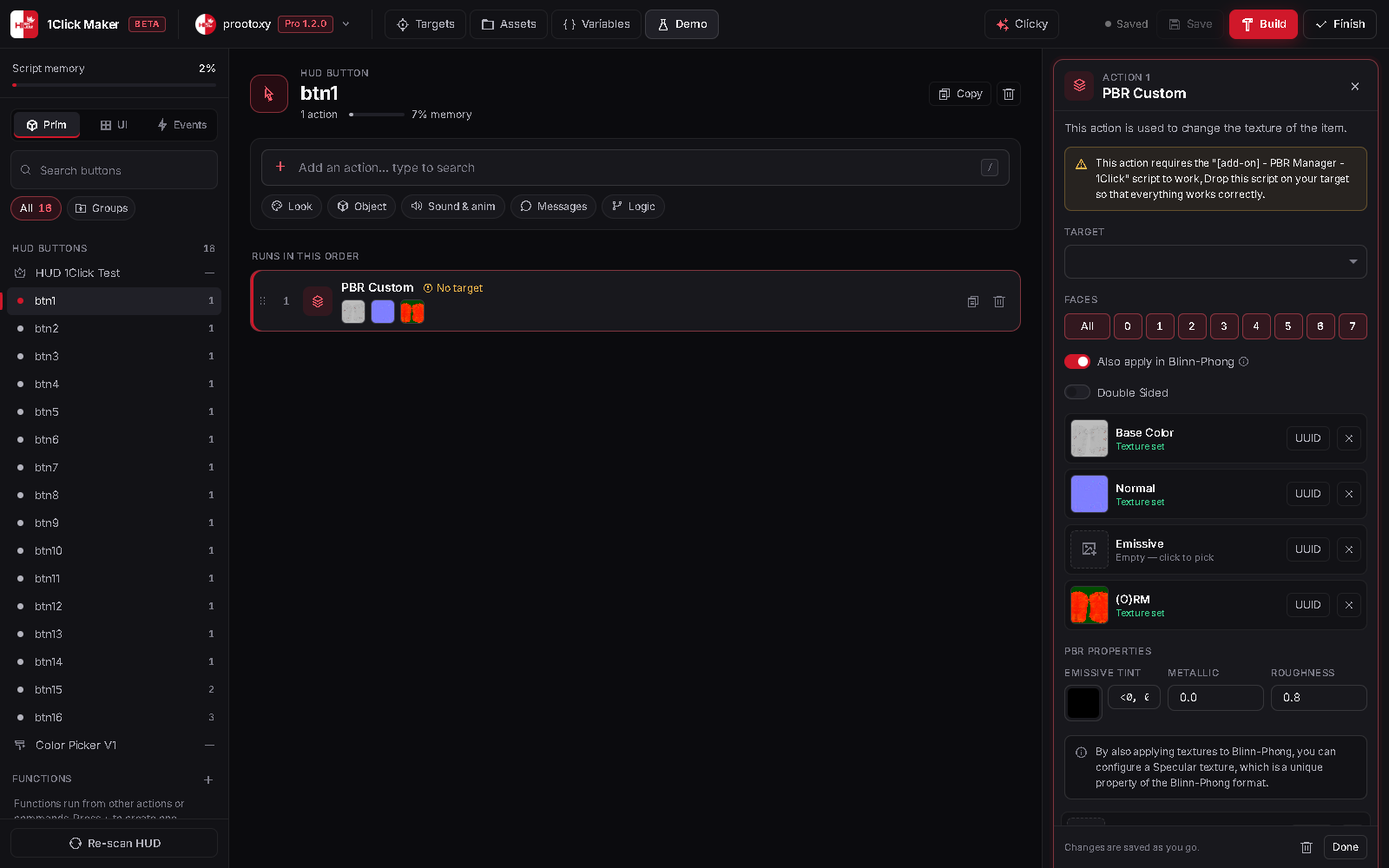
- Editing an action saves as you type. There is no Save button in the form: every valid change goes straight into the project (and Ctrl+Z undoes it). If a field is incomplete, the error shows at the bottom and nothing is changed until it is fixed.
- A new action needs the Add action button at the bottom of the inspector, because a new action always starts incomplete.
- Done (or Ctrl+Enter) and Esc close the inspector.
- Changes still reach Second Life only with Build, and the cloud copy with Save (or autosave).
With nothing selected, the right column shows Help & resources: these docs, What's new, Thanks, Feedback and Classic look.
Events, UI Mode and the windows
Events is its own tab in the left column. The + (or New event) opens the event picker, and an event opens in the center like a button. See Registering an Event.
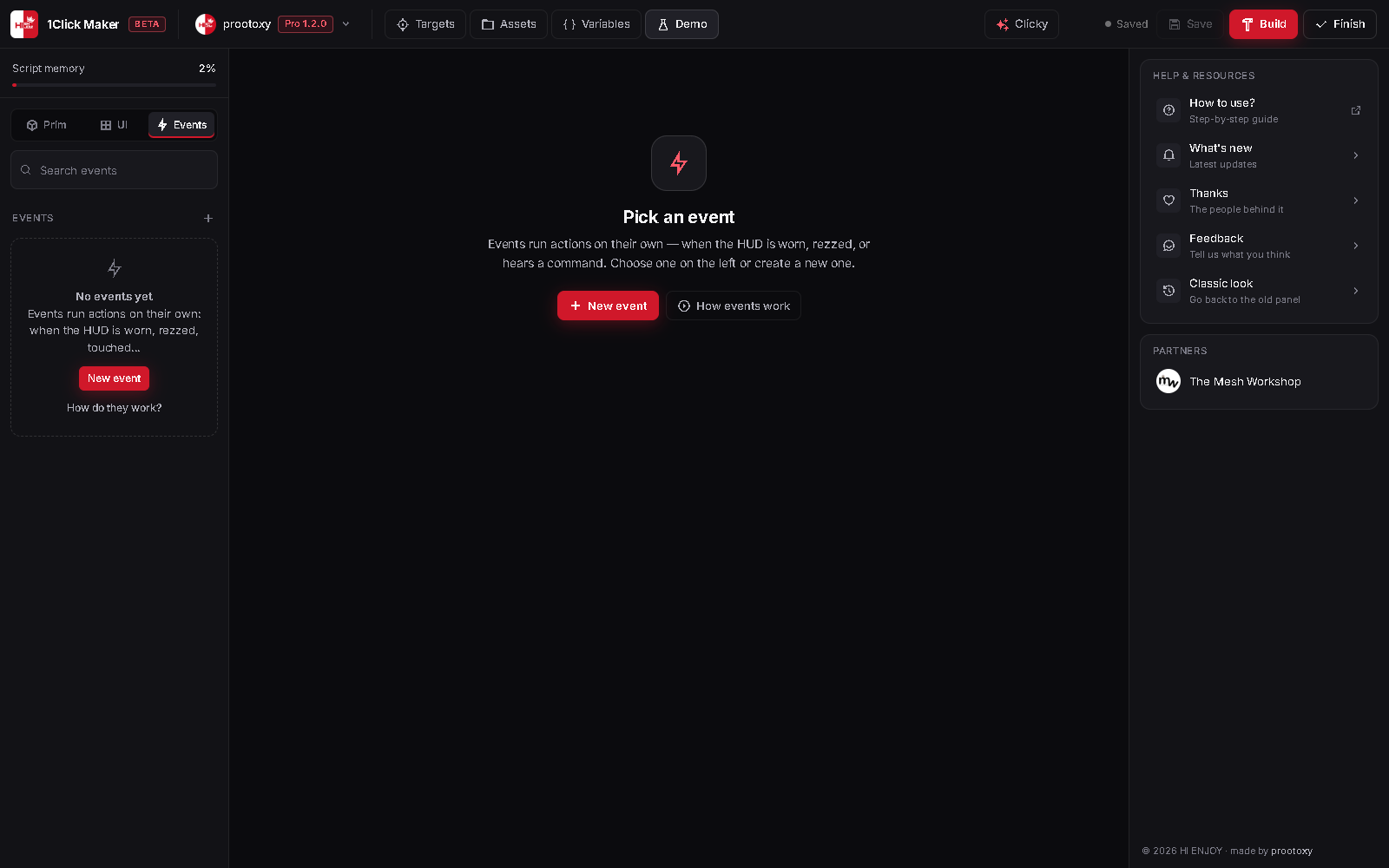
The Events tab. UI Mode: the center shows the HUD texture where you draw buttons. The actions of a UI button open in a window, with the same editor and inspector inside. See UI Mode.
Targets, Assets and Variables open from the header. Variables slides in from the right, with Yours and System tabs.
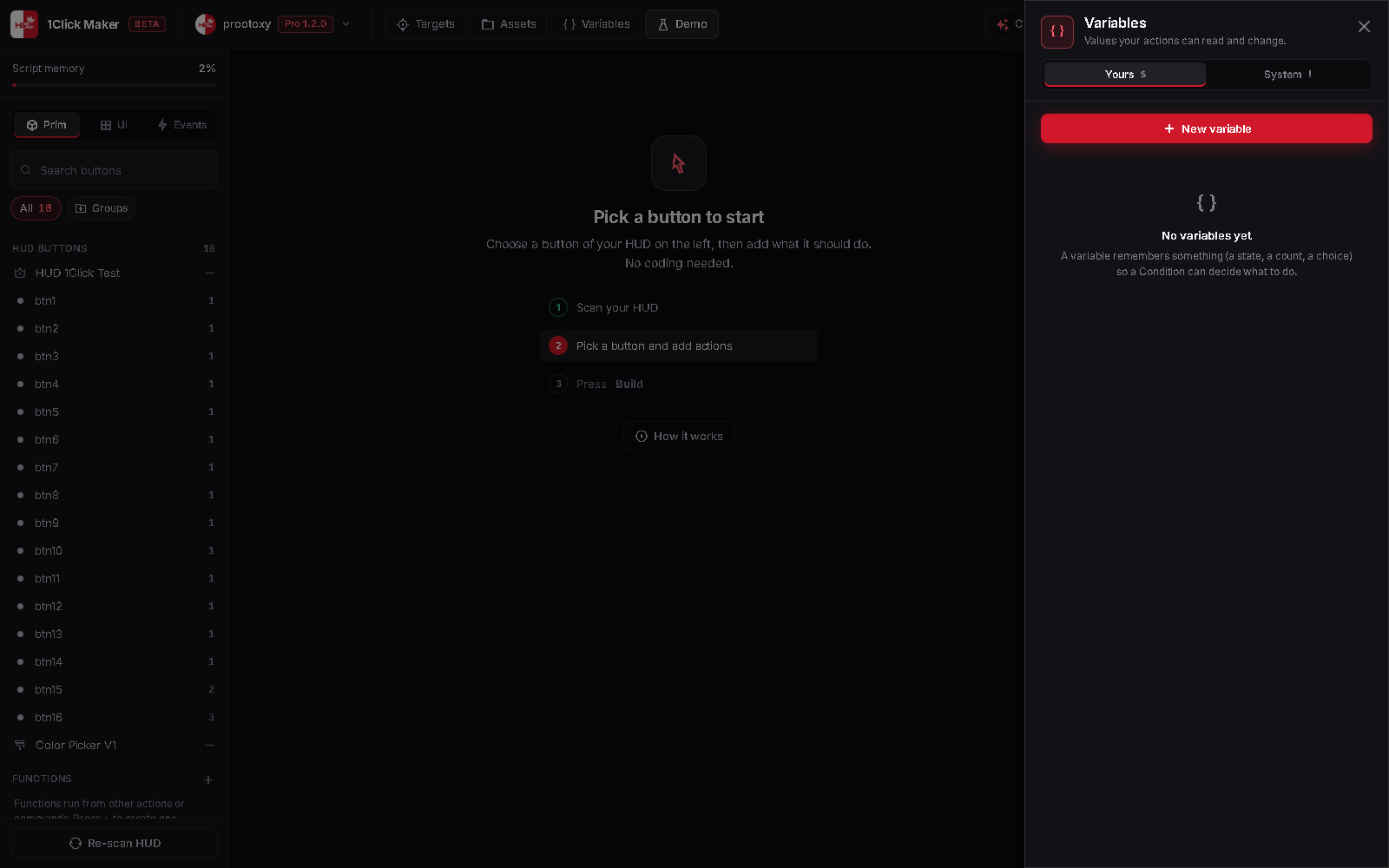
Variables, opened from the header.
Where did it go?
| In the Classic look | In the new look |
|---|---|
| Clicking a button creates a function, then a card opens it | Clicking a button opens it in the center; the function exists once it has an action |
| Function cards in the center | The left column (the number = actions) |
| ✏️ edit on a card | Click the button in the left column |
| 📄 clone on a card | Copy at the top of the open button |
| Green + next to Functions | + next to Functions in the left column |
| Events row in the center | The Events tab |
| Action icon grid on top of the editor | Add action bar (search or categories) |
| Edit Action window | The inspector on the right |
| Manage Groups and chips at the bottom | Group chips and Groups above the button list |
{ } button, bottom left | Variables in the header |
| ✦ button, bottom left | Clicky in the header (Ctrl+I) |
| How to use? · What's New · Thanks · Feedback | Help & resources, right column |
Tell us what you think
The new look is in beta because we want your opinion before it becomes the default. Use Feedback in Help & resources, or tell Clicky what felt strange. Clicky knows both looks and gives directions for the one you have open.